
Tip & Trick
Microsoft 365 is packed with underutilized features that can save you hours every week. These 10 lesser-known tips and tricks will transform how you work across Word, Excel, Outlook, and Teams—boosting efficiency without requiring technical expertise.
Excel Quick Analysis Tool for Instant Data Insights
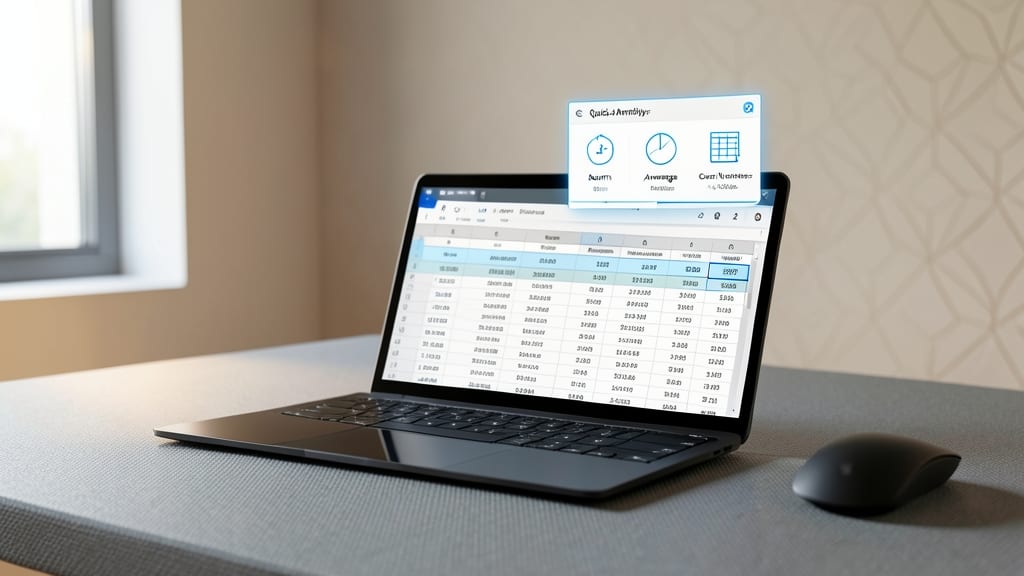
Struggling to turn raw data into meaningful insights without diving into complex formulas? Excel’s Quick Analysis Tool is your secret weapon—it instantly generates charts, tables, and even recommended formulas when you select a data range. No need to remember PivotTable shortcuts or guess which chart type works best; the tool does the heavy lifting for you.
Simply highlight your data, click the Quick Analysis button (looks like a lightning bolt), and choose from charts, tables, or totals—all with a single click. The tool even suggests smart formulas like averages or sums based on your selection. Works seamlessly with Excel 365 and Excel 2016+, and syncs with your existing workbook styles for a polished look.
Perfect for marketers analyzing campaign data, small business owners tracking finances, or students crunching survey results—this tool turns spreadsheets from intimidating to intuitive. Try it today and say goodbye to manual analysis headaches! ⚡
Word's Researcher Tool with AI-Powered Citations
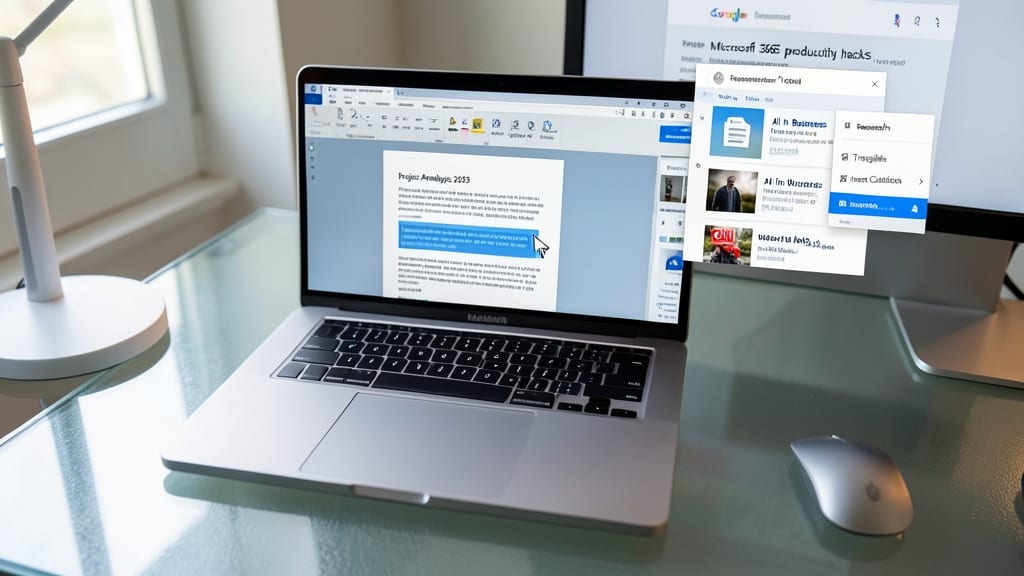
Tired of jumping between Word and your browser to research sources? Word’s Researcher Tool turns your document into a live research hub—no tabs or distractions needed. Simply highlight text, right-click, and select Research, then choose from Bing’s search results or your OneDrive files. The tool even auto-generates citations in APA, MLA, or Chicago format with a single click, saving hours of manual formatting.
The real magic? Real-time updates—if you find a better source later, just drag-and-drop the new citation into place. It also tracks sources in a dedicated pane, so you can organize references without leaving your document. Works seamlessly with Word Online or desktop, and syncs across devices for a seamless workflow.
Perfect for students writing papers, journalists compiling articles, or professionals drafting reports—this tool eliminates the back-and-forth between research and writing. Say goodbye to citation headaches and hello to a streamlined workflow! ✨
Outlook Focused Inbox for Priority Email Management

Drowning in a sea of promotional emails and newsletters? Outlook’s Focused Inbox is your lifeline—it automatically sorts high-priority messages (like replies, meeting requests, and emails from key contacts) into a separate tab, while filtering distractions into a secondary "Other" folder. No manual rules or complex filters required.
To enable it, simply click the Focused Inbox button in your Outlook toolbar (desktop or web) and toggle it on. The AI-powered system learns your habits over time, adjusting to keep only what matters at the top. For mobile users, swipe right on your inbox to access the Focused tab instantly. Best of all, it syncs across all your devices—so your priority emails stay prioritized, no matter where you are.
This feature is a game-changer for sales teams, managers, and anyone juggling multiple projects—it cuts down on decision fatigue by letting you focus on what truly demands your attention. Give it a try and reclaim hours of productivity every week. ⚡
PowerPoint Morph Transition for Seamless Slide Animations
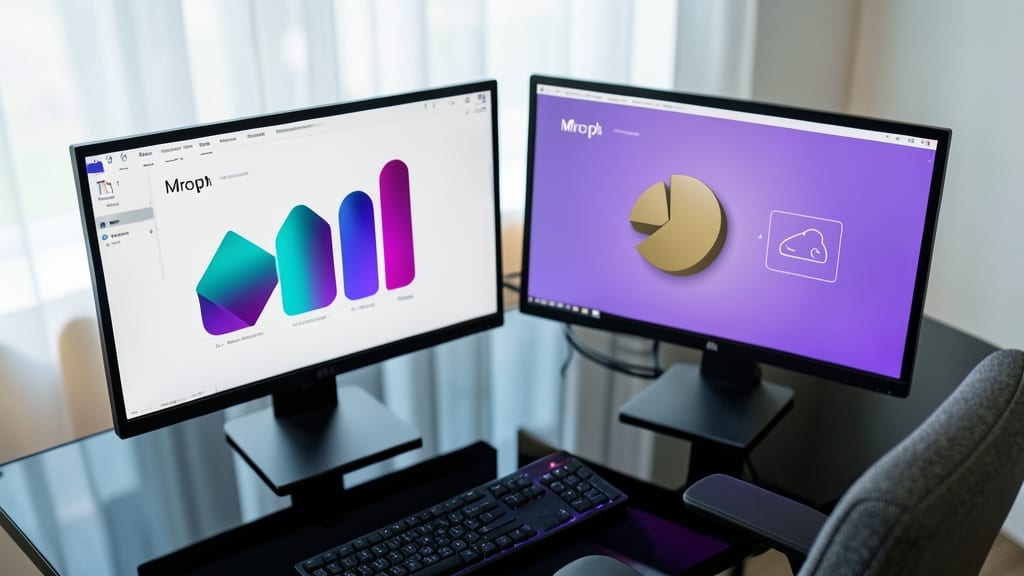
Tired of clunky slide transitions that look like they were made in the 2000s? PowerPoint’s Morph transition lets you animate complex shapes, graphs, and layouts with a single click—no manual keyframes required. This feature intelligently handles resizing, repositioning, and even color shifts between slides, ensuring your visuals flow smoothly without glitches.
To use it, simply select two slides with different elements, then choose Morph from the transition menu. The tool automatically detects changes in shapes, text placement, and even image scaling, creating cinematic effects that would take hours to replicate manually. For extra polish, pair it with timing adjustments to control animation speed—perfect for emphasizing key points without overwhelming your audience.
Designers and presenters who want professional-grade animations without the hassle of traditional motion paths will love this. It’s especially useful for data-heavy presentations where charts or diagrams need to evolve seamlessly. ✨
Teams Co-authoring for Real-Time Document Collaboration

Tired of endless email chains and version control chaos when collaborating on documents? Teams Co-authoring lets multiple users edit the same Word or Excel file in real time—no more "finalfinalv3.docx" nightmares. Simply open the file in Teams, and watch as others' cursors appear live, with color-coded indicators for who's editing what.
This feature works seamlessly with Word Online and Excel Online, supporting up to 50 simultaneous editors (with premium plans) and auto-saving changes to OneDrive or SharePoint. Need to chat about edits? The integrated Teams chat keeps conversations tied directly to the document. For remote teams, it’s like having a virtual whiteboard for spreadsheets and reports.
Perfect for marketing teams brainstorming campaigns, legal teams drafting contracts, or any group that needs to align on data fast. No more waiting for file drops—just real-time collaboration with built-in conflict resolution. ✨
Excel XLOOKUP Function for Advanced Data Matching
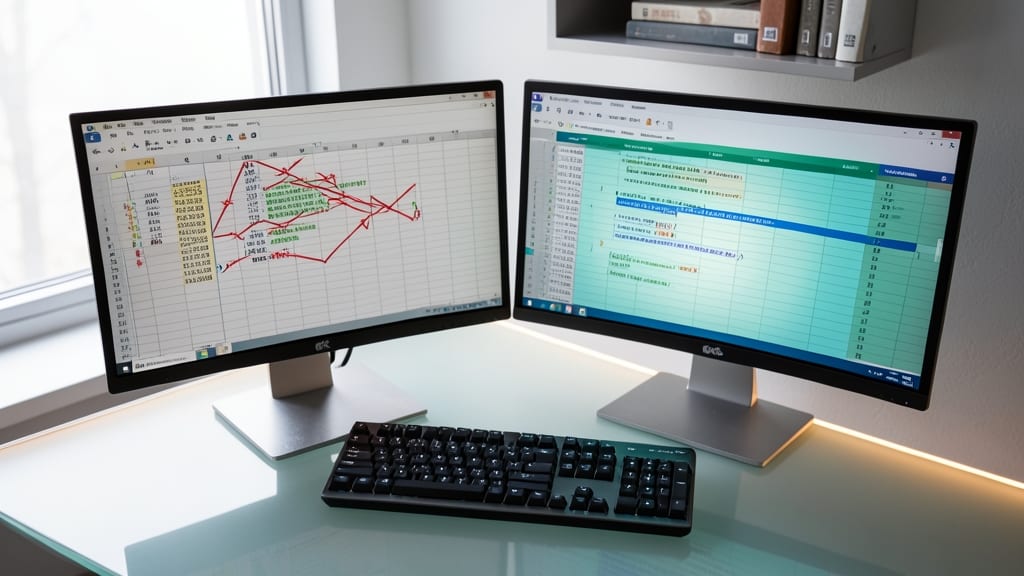
Tired of wrestling with VLOOKUP’s rigid limitations? Meet XLOOKUP, Excel’s game-changing function that handles errors, searches left-to-right, and works with messy datasets without breaking a sweat.
With four simple arguments (lookup value, range, return value, optional match mode), XLOOKUP outperforms VLOOKUP in every way: it returns errors instead of #N/A, searches horizontally, and even lets you specify exact or approximate matches. The wildcard support (* and ?) makes it perfect for fuzzy matching—like finding "Apple" in a list of "Apple Inc." or "Apple Pie."
Data analysts and finance pros will love how XLOOKUP simplifies complex lookups in Excel 365 and Excel 2021. Try it today and say goodbye to nested IFERRORs and helper columns! ✨
Word's Read Aloud Feature with Customizable Speed

Struggling to catch typos when reading your own writing? Microsoft Word’s Read Aloud feature transforms your document into audio, letting you listen for errors—especially useful for writers who spot mistakes better aurally or professionals with visual impairments.
Simply press Alt+Ctrl+S (Windows) or Option+Cmd+S (Mac) to start playback, then adjust the speed from 100% to 300% using the playback toolbar. The feature supports natural voice narration and pauses at punctuation, making it ideal for long documents or complex edits. You can even highlight text while listening to follow along.
This accessibility tool isn’t just for proofreading—it’s a game-changer for students, authors, and anyone who works with dense text. Give your eyes a break and let Word do the reading! ✨
OneDrive Quick Access for File Version Recovery
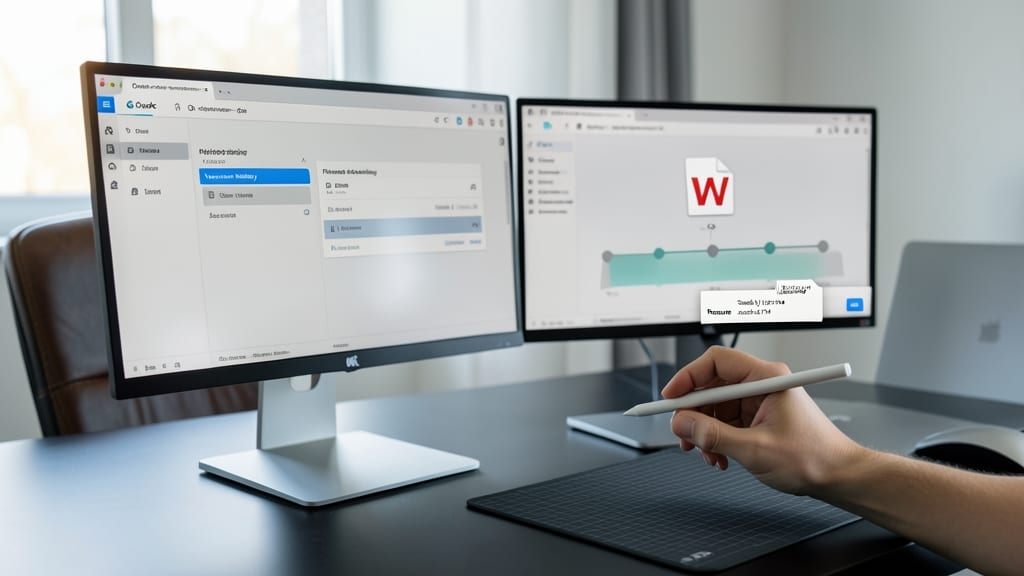
Ever hit "Save" only to realize you just overwrote your final draft? OneDrive’s Quick Access version recovery is your safety net—no third-party tools required. Right-click any file in OneDrive’s desktop app or File Explorer, select Version history, and instantly restore previous versions with a single click.
This feature works seamlessly with all Microsoft 365 file types (Word, Excel, PowerPoint) and keeps up to 100 versions by default (adjustable in settings). You can even compare versions side-by-side to pinpoint changes before restoring. Best of all, it syncs automatically—no manual backups needed.
Perfect for freelancers, students, or anyone who’s ever panicked after a "Save" mistake. No more lost work—just peace of mind. ✨
Outlook Quick Steps for Email Automation

Tired of manually flagging follow-ups or forwarding client emails one by one? Outlook Quick Steps lets you automate repetitive tasks with pre-built or custom actions—saving minutes (or hours) every day.
Create single-click shortcuts to flag emails for follow-up, forward to a team inbox, or reply with a template—all without leaving your inbox. The feature even supports conditional rules (e.g., "flag emails over $1,000"). Best of all, it syncs across devices, so your workflow stays consistent whether you're at your desk or on the go.
Sales teams and support reps will love this for handling high-volume inboxes—no more repetitive clicks. Give it a try and reclaim your focus! ⚡
PowerPoint Presenter View for Speaker Notes

Ever forgotten your place mid-presentation because your notes were hidden or your timer wasn’t visible? PowerPoint Presenter View solves this by showing your slides, speaker notes, and a built-in timer on one screen—while your audience sees only the presentation. It’s the ultimate confidence booster for speakers who hate fumbling with paper or glancing at tiny on-screen notes.
To access it, simply press F5 (or click Slide Show > From Beginning) and use a second monitor to view Presenter View. Here, you’ll see your slides on the top half and your notes below, plus a live timer to track your pacing. You can even rehearse privately by pressing Rehearse Timings to record your speaking speed for future presentations. The view also includes a laser pointer tool for emphasis without distracting visuals.
This feature is a game-changer for trainers, educators, and business presenters who juggle complex content and need to stay organized. No more frantic note-taking or awkward pauses—just smooth, professional delivery with all the tools you need at a glance. ✨