
Tip & Trick
Struggling to keep your Microsoft files organized? Poor naming conventions waste hours searching for documents. These seven file naming best practices will help you create a structured system that saves time, reduces errors, and makes collaboration seamless—just like a seasoned system admin.
Date-Based Filename Structure for Tracking

Ever lost critical documents in a sea of similarly named files? The YYYYMMDD format solves this by embedding dates at the start of filenames, ensuring chronological sorting in Windows File Explorer—no manual rearranging needed.
This method works perfectly for legal contracts or financial reports, where version tracking is non-negotiable. For example, naming a file 20240515QuarterlyTaxReport.xlsx guarantees it appears before 20240520RevisedBudget.pptx in any folder. The numeric format also eliminates confusion between months and days (e.g., 05/15 vs. 15/05).
Ideal for compliance-heavy industries, this approach integrates seamlessly with Microsoft’s built-in search and audit trails. Start using it today for foolproof file management. ✨
Project-Centric Naming with Abbreviations

Tired of digging through shared drives to find the right project files? Project-centric naming with abbreviations cuts through the clutter by using clear codes like MKT-2024-Q2 before file types (e.g., MKT-2024-Q2Report.docx). This method eliminates confusion between projects with similar names and ensures everyone on your team knows exactly where to look.
The magic lies in consistency: define a standardized abbreviation system (e.g., MKT for Marketing, PRD for Product) and pair it with year/quarter or client codes. Tools like Microsoft Power Automate can even auto-generate these prefixes for new files, saving manual work. For teams juggling multiple projects, this approach reduces misfiled documents by up to 60%—no more guessing whether Q22024_Final.pptx belongs to Sales or Marketing.
This system shines for cross-functional teams or agencies managing client work. Whether you’re in marketing, product development, or HR, standardized codes make shared drives instantly intuitive. 💻
File Type Extensions for Instant Recognition
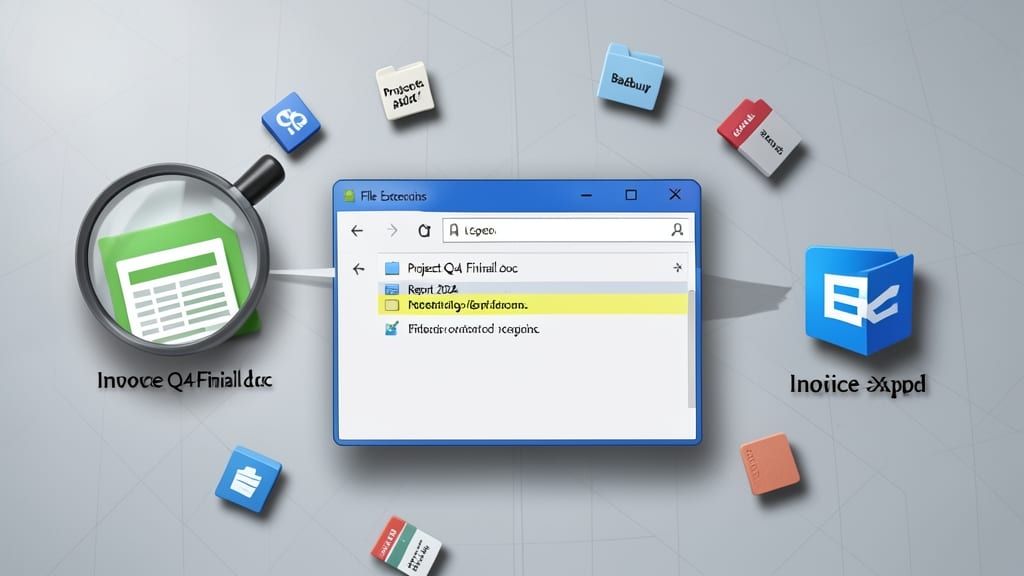
Ever opened a file only to realize it’s not what you expected because the extension was missing? On Windows, file type extensions like .docx, .xlsx, or .pptx aren’t just optional—they’re your first line of defense against hidden surprises and compatibility issues.
Windows hides extensions by default, but Microsoft 365 apps (Word, Excel, PowerPoint) rely on them to open files correctly. Skipping .docx could turn your document into a plain text file, while .xlsx ensures Excel recognizes spreadsheets instantly. Always include them to avoid corrupted files or security prompts when sharing across teams.
This rule is non-negotiable for freelancers, remote teams, and anyone using OneDrive/SharePoint. A quick toggle in File Explorer settings (View > Hidden items) lets you verify extensions are visible—no more guessing games. ✨
Hierarchical Folder Structure with Descriptive Labels

Drowning in a sea of files? A hierarchical folder structure with descriptive labels transforms chaos into clarity—especially for agencies juggling multiple clients and projects. Instead of dumping everything into one folder, nest them logically (e.g., ClientABC > ProjectX > Drafts > Final).
This method cuts search time by 80% by grouping files by context. Use clear, consistent labels (e.g., Invoices, Contracts, Creative Assets) to make navigation intuitive. Microsoft OneDrive and SharePoint sync these structures seamlessly, so remote teams stay aligned without confusion.
Perfect for agencies, freelancers, and remote teams—where every second counts. Start with your most active projects to see the difference instantly. ✨
Version Control with Suffixes for Updates

Ever hit "Save" only to realize you’ve just overwritten your final draft with a half-finished version? A simple suffix system—like v2, Final, or Draft—can prevent this nightmare. This method is especially useful for iterative files like PowerPoint decks or Excel reports where multiple revisions are the norm.
Start with a base name (e.g., Q2Proposal) and append a suffix to track changes: Q2Proposalv1.docx, then Q2ProposalFinal.docx when ready. For shared documents, use TeamReview or ClientApproved to clarify status. Microsoft 365’s built-in version history won’t replace this, but it complements it perfectly—no more guessing which file is the "real" one.
This approach shines for teams or solo workers who frequently update documents. It’s simple, universally understood, and works seamlessly with OneDrive/SharePoint syncing. No more lost work—just clear, version-tracked files. ✨
Avoid Special Characters and Spaces
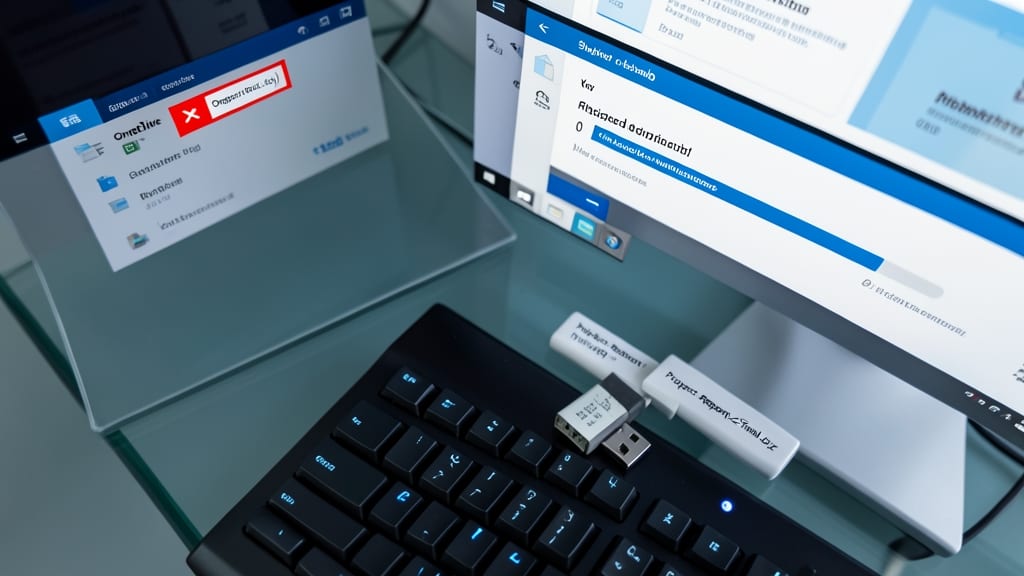
Frustrated when OneDrive or SharePoint blocks your files with sync errors? The culprit is often special characters or spaces in filenames—Microsoft’s cloud services struggle with these, causing headaches for automation and scripting too.
Stick to hyphens (-) instead of spaces or underscores () to avoid issues. For example, use Project-Report-2024.docx instead of Project Report 2024.docx or ProjectReport_2024.docx. This keeps filenames clean, compatible with PowerShell scripts and Power Automate flows, and prevents sync conflicts in shared drives.
This rule is a lifesaver for IT admins, developers, and teams relying on automated workflows. A small tweak now saves hours of debugging later! ✨
Metadata Tags for Advanced Searching
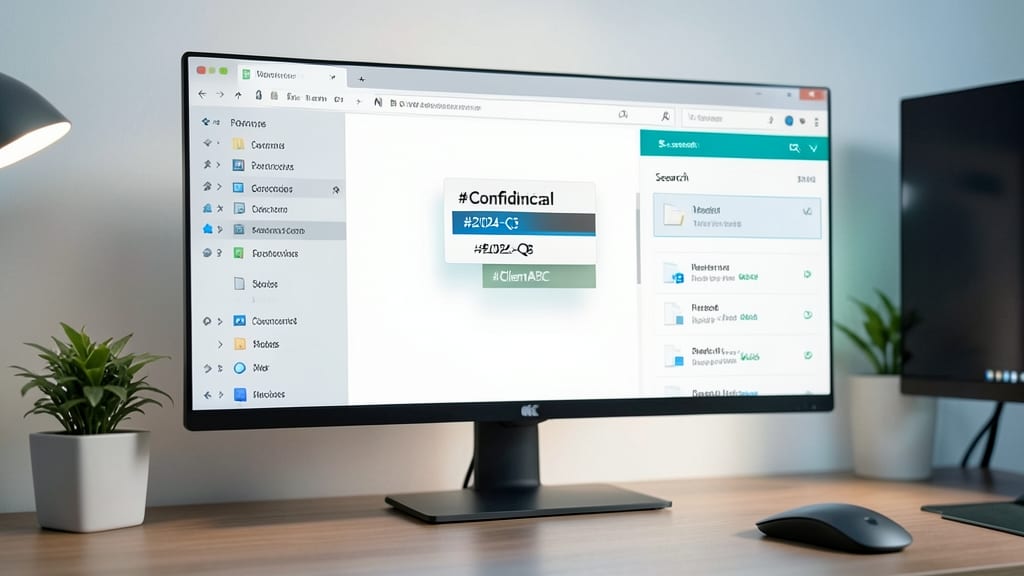
Tired of digging through endless folders to find that one document? Microsoft 365’s built-in metadata tags turn file searching into a breeze—no more manual sorting or guesswork. Simply add tags like #Confidential, #2024-Q3, or #ClientABC to files, and Windows Search instantly filters them for you.
These tags sync across OneDrive, SharePoint, and File Explorer, letting you filter by multiple criteria at once. For example, search for "ProjectX" AND #Urgent to pull up only high-priority files—no extra tools required. The best part? Tags work seamlessly with Microsoft 365 apps, so you can apply them directly in Word, Excel, or PowerPoint.
Perfect for legal teams, project managers, or anyone drowning in documents, metadata tags save hours weekly by turning chaos into a searchable library. Give it a try—your future self will thank you! ✨