
Software
Struggling to keep up with Microsoft 365’s features while juggling deadlines? These 10 efficiency best practices will help you automate workflows, reduce repetitive tasks, and reclaim lost time—without sacrificing quality or collaboration.
Master Quick Access Toolbar Customization

Tired of wasting time hunting through menus for the same commands every day? The Quick Access Toolbar in Microsoft 365 lets you pin your most-used actions—like Save, Undo, or Quick Print—right where you need them, just one click away. This hidden gem appears in every Office app (Word, Excel, PowerPoint) and adapts to your workflow, so you can ditch repetitive mouse journeys.
Customizing it takes seconds: right-click the toolbar, select "Customize Quick Access Toolbar", and choose from commands, macros, or even groups. Pro tip: Use the "More Commands" dropdown to add lesser-known gems like "Insert Hyperlink" or "Toggle Comments"—commands that save minutes daily. The toolbar syncs across devices, so your shortcuts follow you whether you’re on desktop or mobile.
Perfect for developers, designers, or anyone drowning in repetitive tasks, this tweak cuts down on mental friction and speeds up your workflow. Once set up, you’ll wonder how you ever worked without it. ⚡
Leverage Power Automate for Repetitive Tasks
Stuck spending hours on manual tasks like sorting emails, organizing files, or entering data? Microsoft Power Automate turns those time-sinks into automated workflows—no coding required. With over 400 pre-built templates, you can instantly set up flows like auto-replying to customer emails, saving attachments to SharePoint, or logging expense reports into Excel.
The real magic happens with custom connectors that link Outlook, Teams, SharePoint, and third-party apps like Salesforce or Twitter. For example, create a flow that automatically moves high-priority emails from your inbox to a designated folder while adding calendar reminders for follow-ups. Advanced users can even use AI Builder to extract data from forms or classify emails with machine learning—cutting processing time by up to 80%.
This is a game-changer for administrative teams, HR professionals, or anyone buried in repetitive data entry. Start with simple flows today and watch your productivity climb. 💡
Use Outlook Focused Inbox for Priority Emails

Drowning in a sea of emails? Outlook’s Focused Inbox automatically sorts high-priority messages into one view, so you can respond faster and skip the clutter. This built-in feature uses machine learning to identify emails most relevant to you—no manual filtering required.
With Focused Inbox, you’ll see only the critical emails from managers, colleagues, or clients in your priority view, while promotional or low-importance messages stay tucked away. The feature syncs across devices, ensuring you stay on top of what matters whether you’re at your desk or on-the-go. Customize it further by marking emails as "Focused" or "Other" to refine its learning over time.
Perfect for executives, project managers, or anyone juggling multiple priorities, Focused Inbox cuts down on decision fatigue and helps you reclaim hours weekly. ⚡
Enable Real-Time Co-Authoring in Word and Excel

Tired of endless email chains and version-control chaos when editing documents with your team? Real-time co-authoring in Word and Excel lets multiple users edit the same file simultaneously—no more "finalfinalv3.docx" headaches.
Turn on the feature in Word Online or Excel Online (or via desktop apps with a Microsoft 365 subscription) to see live cursors, comments, and edits appear instantly. Conflict resolution is automatic—no more merging changes manually—and the version history keeps track of every edit. Perfect for brainstorming sessions, legal reviews, or financial models where every second counts.
Remote teams, freelancers, and agencies working on shared projects will see the biggest time savings—cutting review cycles by up to 50% while keeping everyone aligned. ✨
Optimize OneDrive Sync Settings for Large Files

If your OneDrive sync is slowing down your device or draining your bandwidth with large files, a few simple tweaks can transform your experience. By default, OneDrive syncs everything—including high-resolution media like 4K videos, RAW photos, or large design files—which can clog your storage and network. Adjusting sync settings ensures only what you actually need stays on your device.
Start by right-clicking the OneDrive icon in your system tray and selecting "Settings", then navigate to the "Settings" tab. Under "Files On-Demand", enable it to stream files instead of syncing them all at once—this keeps your device snappy while still giving you access to everything. For large files, use "Selective Sync" to choose specific folders (like your project files or media library) to sync locally, while keeping the rest in the cloud. This cuts down on unnecessary data usage by up to 70% for creatives or teams working with heavy files.
This setup is ideal for video editors, photographers, or design teams who need quick access to files but don’t want their devices bogged down. With the right sync strategy, you’ll avoid slowdowns and keep your workflow seamless. 💻
Utilize Microsoft Forms for Quick Surveys and Feedback

Tired of chasing down responses via email threads? Microsoft Forms transforms feedback collection into a seamless, real-time process with zero back-and-forth. Skip the endless "Reply All" chains and lost responses—this tool lets you design surveys in minutes, from quick polls to detailed feedback forms, all with built-in analytics.
You can embed Net Promoter Score (NPS) questions, add conditional logic for smarter workflows, and even integrate responses directly into Excel or Power BI for deeper analysis. The mobile-friendly design ensures team members can submit feedback on the go, while custom branding keeps surveys aligned with your company’s look. Plus, it’s free with your Microsoft 365 subscription—no extra tools or training required.
Perfect for managers running team retrospectives, HR gathering employee sentiment, or project leads tracking stakeholder input. Say goodbye to survey fatigue and hello to actionable insights in minutes. ✨
Set Up Keyboard Shortcuts for PowerPoint Presentations

If you’re tired of fumbling through menus during presentations, PowerPoint’s built-in keyboard shortcuts can transform your delivery from awkward pauses to seamless professionalism. These customizable commands let you navigate slides, trigger animations, and access presenter notes with just a keystroke—no mouse required.
Start with the basics: F5 to begin slideshows, →/← to advance slides, and Ctrl+P to toggle presenter view. For deeper customization, dive into File > Options > Customize Ribbon to assign shortcuts to animations or transitions. Trainers and sales teams can save minutes per presentation by eliminating mouse clicks, while presenters with complex slides benefit from quick access to speaker notes (Alt+P, N).
This trick is a game-changer for anyone who delivers presentations regularly—whether you’re a corporate trainer, sales rep, or educator. Master these shortcuts, and you’ll spend less time managing tech and more time engaging your audience. ✨
Implement Teams Channels for Structured Communication

Tired of digging through endless email threads to find the right conversation? Microsoft Teams Channels transform chaotic communication into organized, searchable hubs—each dedicated to a specific project, department, or topic.
Create private or public channels to keep discussions focused, pin important messages for quick reference, and integrate file storage, tabs, and third-party apps directly into conversations. The search function lets you find past discussions in seconds, while @mentions ensure key team members never miss critical updates. With cross-device sync, your channels stay accessible whether you're in the office or working remotely.
This is a game-changer for distributed teams—marketing, HR, and engineering can all work in parallel without stepping on each other’s toes. Say goodbye to lost emails and hello to streamlined collaboration. ✨
Use Excel Quick Analysis Tools for Data Insights
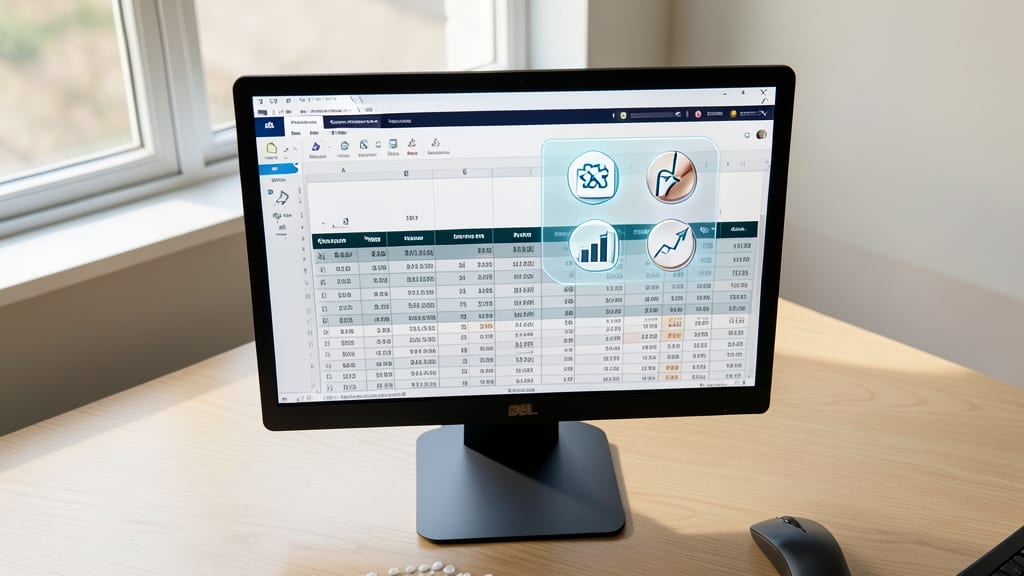
Tired of manually creating charts or pivot tables from raw data? Excel’s Quick Analysis Tools turns your selected data into insights in seconds—no formulas or complex setups required. This hidden gem appears automatically when you highlight a table, offering one-click access to visual summaries, trend analysis, and even conditional formatting.
With just a few clicks, you can generate bar charts, line graphs, or sparklines to highlight trends, or create summarized tables that extract key metrics like averages or totals. The tool even suggests the best visualizations based on your data type, saving you from guessing which chart works best. Best of all, it updates dynamically as your data changes—no need to rebuild everything from scratch. ✨
This is a game-changer for analysts, marketers, or anyone crunching numbers who want to focus on insights rather than formatting. Whether you’re reviewing sales trends or tracking project timelines, Quick Analysis Tools turns spreadsheets into a powerhouse for decision-making. 💻
Enable Focus Mode in Outlook to Block Distractions

Drowning in email notifications but struggling to focus on deep work? Outlook’s Focus Mode is your secret weapon—it silences non-urgent emails and notifications, creating a distraction-free zone for critical tasks.
With just a toggle, you can pause all incoming notifications for up to 8 hours, ensuring only high-priority emails (flagged or from your focus list) break through. The customizable focus list lets you prioritize senders, while the scheduled focus mode syncs with your calendar to block distractions during meetings or writing sprints. Best of all, it integrates seamlessly with Outlook’s existing priority system, so you never miss what truly matters. ⚡
Freelancers writing reports, developers debugging code, or managers crafting strategies will love this—it’s the perfect tool for anyone who needs uninterrupted blocks of time to power through their most important work.