
Software
Microsoft Teams isn’t just another communication tool—it’s a game-changer for teachers looking to streamline classroom management, boost parent engagement, and save time. These 10 benefits show how educators can leverage Teams to transform teaching workflows and create seamless collaborative spaces.
Seamless Classroom Communication Hub
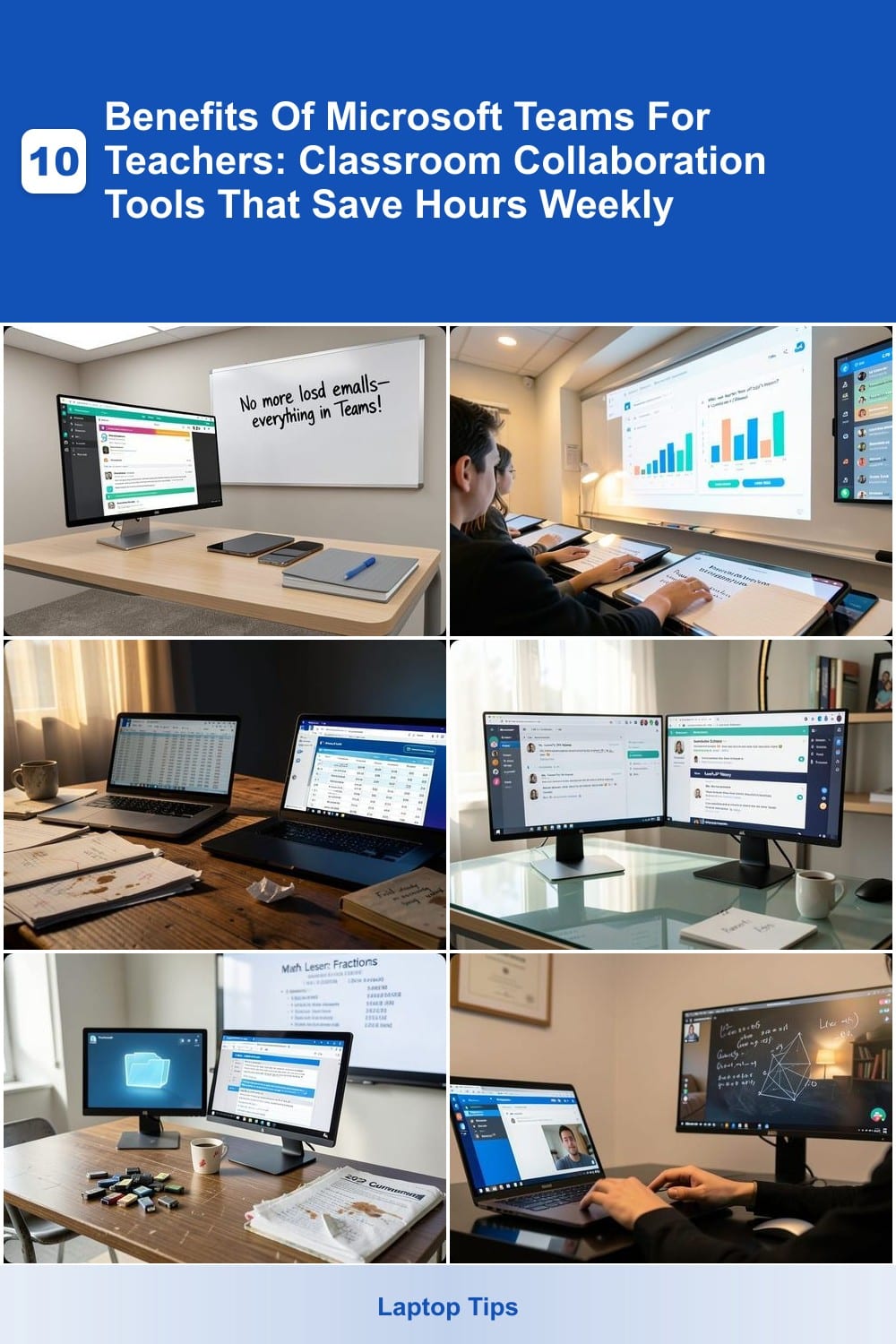
Tired of students missing emails or scrambling to find assignments buried in multiple apps? Microsoft Teams turns your classroom into a single, organized hub where announcements, assignments, and discussions live—no more digital clutter.
With dedicated class channels, you can pin important updates at the top, share files instantly, and even integrate Office 365 tools like Word or Forms. The @mentions feature ensures students see urgent messages, while read receipts confirm they’ve viewed key updates. For hybrid or remote classrooms, this means seamless communication whether students are in the room or logging in from home.
Perfect for teachers juggling multiple grade levels or subjects, Teams keeps everything in one place—so you spend less time chasing updates and more time teaching. ✨
Real-Time Classroom Polls And Quizzes
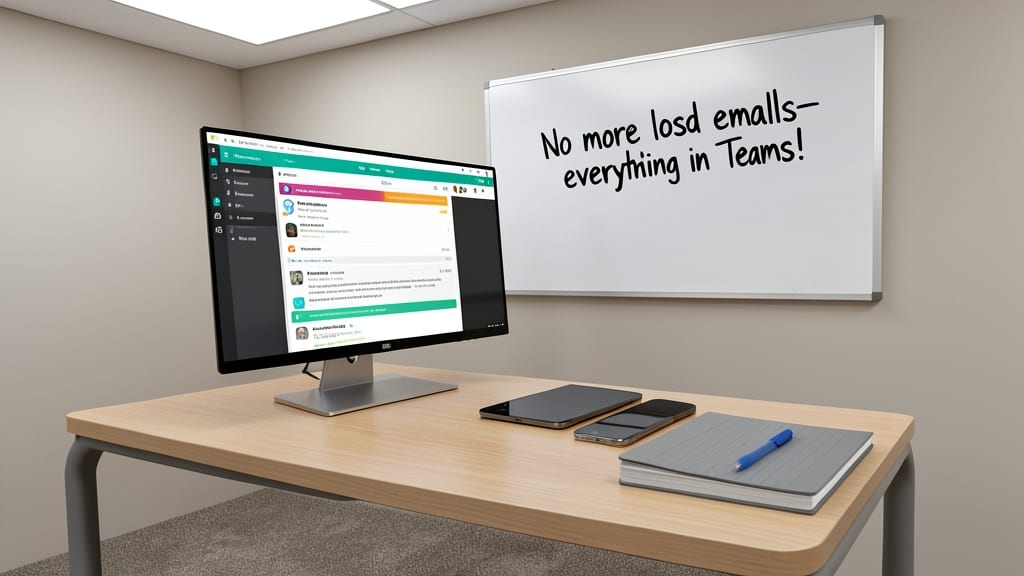
Turn passive learning into dynamic engagement with Microsoft Forms and Polls, built directly into Teams. These tools let you create instant quizzes, exit tickets, or quick polls—all with results appearing in real-time on your screen, so you can adjust lessons on the fly without losing momentum.
With Forms, you can design multi-choice, short-answer, or grading quizzes that auto-populate into a spreadsheet for easy review. Polls keep it simple with one-question checks for understanding, perfect for checking comprehension mid-lesson. Both integrate seamlessly with Teams assignments, so responses sync automatically—no manual data entry required.
This is a game-changer for formative assessments, especially in hybrid or flipped classrooms where every minute counts. Whether you're gauging prior knowledge at the start of a unit or wrapping up with a reflection question, these tools make feedback instant and effortless. ✨
Automated Gradebook Integration With OneNote

Tired of spending evenings manually updating gradebooks and chasing down missing assignments? Microsoft Teams’ automated gradebook integration with OneNote cuts that workload by up to 60%—so you can focus on teaching instead of data entry.
The magic happens through Office 365 sync, where grades, feedback, and assignment statuses auto-update across Teams, OneNote, and Excel. Parents get real-time notifications via Teams messages, while teachers save hours by eliminating duplicate entries. The integration even supports custom rubrics and progress tracking, making portfolio reviews a breeze.
This is a game-changer for teachers juggling multiple classes or hybrid schedules—especially those who want to reduce paperwork stress while keeping families in the loop. ✨
Parent-Teacher Collaboration Channels
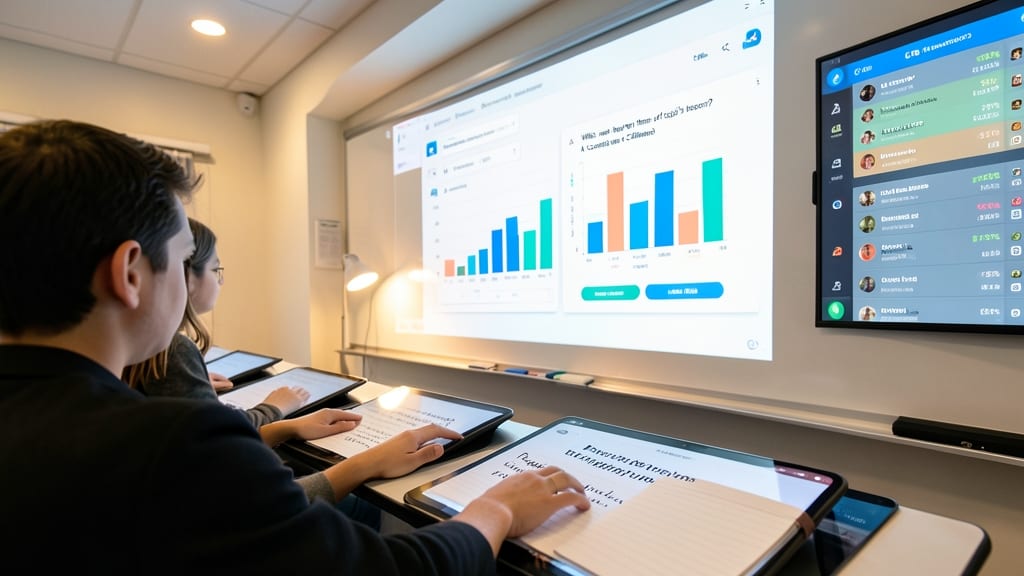
Tired of parent emails getting lost in your inbox? Microsoft Teams’ dedicated parent channels create a centralized hub where updates, announcements, and shared resources live—no more chasing down replies or digging through cluttered threads.
Set up a private parent channel for each class, where you can post real-time updates (like homework reminders or event schedules), share documents (rubrics, syllabi), and even enable two-way messaging—all while keeping conversations organized. The @mention feature ensures parents see critical messages instantly, and file-sharing permissions keep sensitive info secure. Plus, integrate Office 365 apps to embed calendars or forms directly into the channel.
Perfect for teachers juggling PTA communications, IEP updates, or hybrid learning logistics—this feature turns fragmented parent emails into a single, searchable record of your partnership. ✨
Secure File Sharing And Cloud Storage
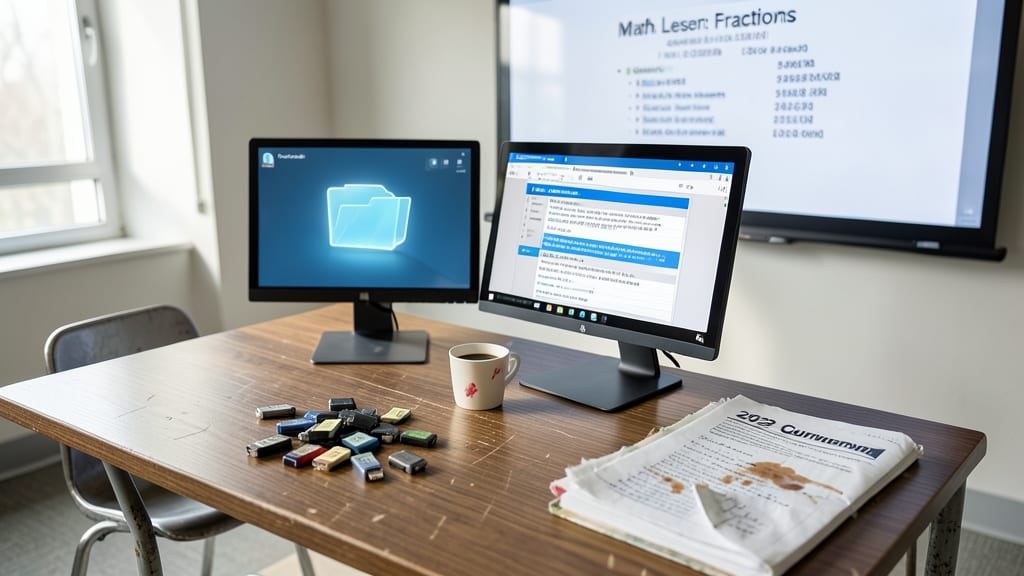
Tired of chasing students down for missing USB drives or scrambling to track which worksheet version is the latest? Microsoft Teams’ OneDrive integration solves both problems with a single, secure solution.
With real-time syncing, every update to your lesson plans, worksheets, or multimedia files automatically reflects for students—no more "I saved it to my desktop" excuses. The 1TB of free cloud storage (via Office 365 Education) gives you room for videos, interactive PDFs, and entire unit folders, all password-protected and accessible from any device. Permissions let you control who edits, views, or downloads files, so sensitive materials stay secure.
This is the perfect tool for teachers juggling hybrid classrooms or distance learning, where physical handouts aren’t an option. Say goodbye to version control headaches and hello to stress-free file sharing. ✨
Virtual Office Hours With Screen Sharing
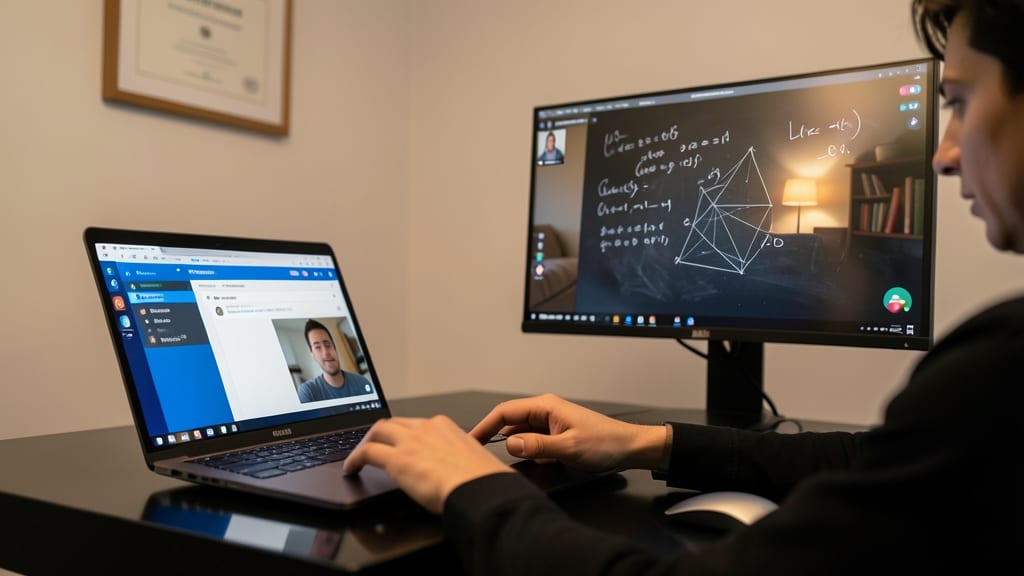
Struggling to keep up with after-school help requests? Microsoft Teams’ screen-sharing feature turns your laptop into a virtual whiteboard for one-on-one tutoring—no extra software needed. Students can join from home, and you can walk through problems in real time, just like in-person office hours.
The built-in annotation tools let you highlight key points, draw diagrams, or solve equations together—perfect for math, coding, or writing support. With recording enabled, students can replay sessions to review tricky concepts later. Plus, the free Teams Education license includes 250 participants per meeting, so you can host group study sessions too.
This is a lifesaver for teachers juggling late-night emails or in-person after-school sessions. Students with busy schedules benefit from flexible, tech-supported help that fits their availability. ✨
Collaborative Lesson Planning With Colleagues
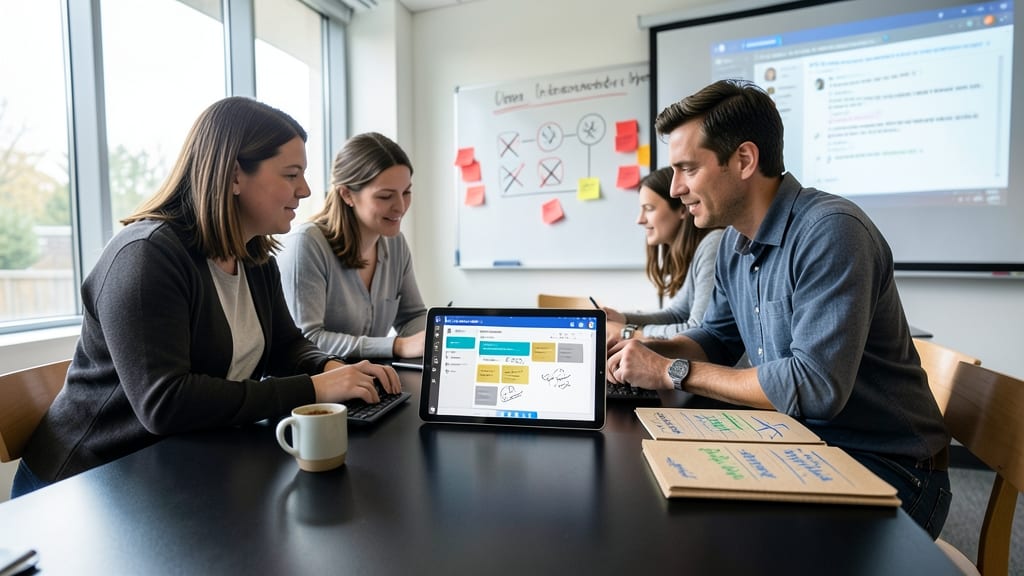
Tired of spending weekends alone crafting lesson plans only to realize your colleagues are teaching the same unit with slight—but critical—differences? Microsoft Teams’ department-wide channels turn solo planning into a team sport, ensuring alignment across grade levels.
Create shared curriculum folders in Teams to store rubrics, pacing guides, and differentiated resources—all editable in real-time. Use OneNote Class Notebooks to track revisions, and the Planner app to assign tasks like "Finalize Q3 unit by Friday." The @mention feature tags colleagues for input, while file versioning prevents the "accidental overwrite" disasters that haunt shared drives. For math departments, align problem sets with common core standards using pre-built templates.
This is the secret weapon for subject-area teams—whether you’re a high school English department aligning literature circles or elementary teachers standardizing math interventions. Say goodbye to inconsistent grading and hello to cohesive, stress-free planning. ✨
Built-In Classroom Recording For Absent Students

Forget scrambling to re-teach missed lessons—Microsoft Teams’ built-in recording feature lets you capture every lecture with just a click, ensuring no student falls behind. With one-tap recording during live classes, you automatically generate searchable video files that students can replay at their own pace, complete with timestamps for easy navigation.
The recordings sync seamlessly to OneDrive, where you can organize them by topic or date, and share them directly in Teams channels or via email. Students access them anytime, on any device, while privacy controls let you restrict viewing to enrolled class members. This flips traditional catch-up sessions into self-paced learning—no extra prep, no one-on-one meetings, just equitable access to instruction.
This feature is a lifesaver for substitute teachers, snow days, or when students miss class due to illness. It’s also perfect for hybrid classrooms where attendance fluctuates weekly. ⚡
Student Portfolio Tracking With Class Notebooks
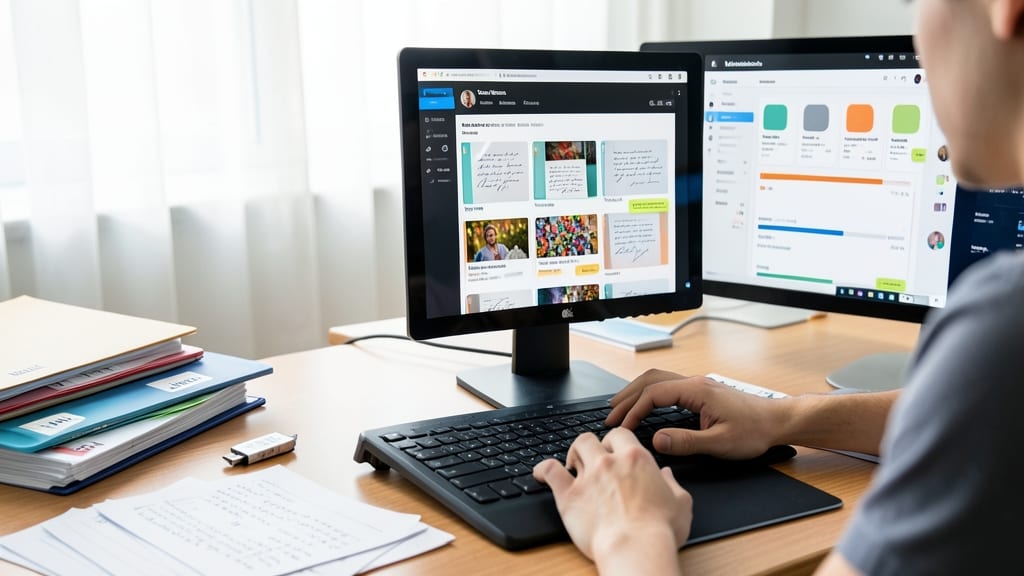
Say goodbye to lost portfolios and frantic end-of-year scrambling—Microsoft Class Notebooks in Teams create a digital home for every student’s work, feedback, and growth in one secure, searchable space. No more digging through binders or misplaced USB drives; everything stays organized and accessible year-round.
Each student gets their own private notebook with three sections: Collaboration Space (shared class materials), Content Library (teacher-approved resources), and Ink Notebook (handwritten notes or digital annotations). Teachers can add voice comments, draw directly on assignments, and track progress with real-time feedback stamps—all synced across devices. The search function even lets you find specific student work by keyword in seconds.
Art teachers, science educators, and project-based learning instructors will love how Class Notebooks preserve multimedia portfolios (photos, videos, and drafts) while keeping everything gradebook-aligned. Perfect for showcasing student growth during parent-teacher conferences or standardized review periods. ✨
Integration With Special Education Tools
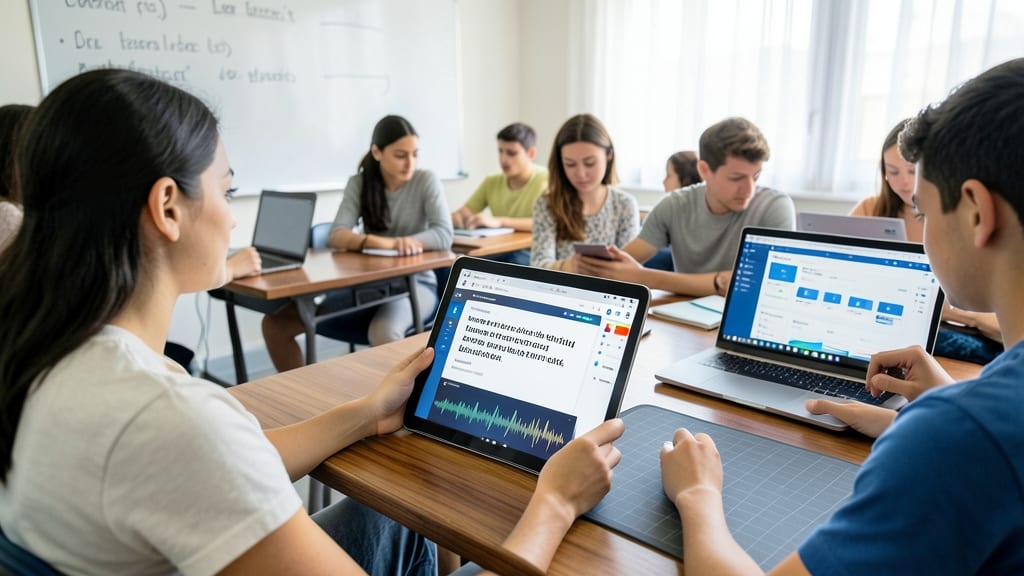
Every student learns differently—and Microsoft Teams makes it easier than ever to meet those unique needs. With built-in tools like Immersive Reader, students can adjust text size, highlight key terms, and even hear content read aloud in over 80 languages, while Microsoft Educator Dashboard provides real-time insights to tailor instruction.
The accessibility features—such as closed captions, translation tools, and customizable reading preferences—ensure no student gets left behind. Meanwhile, the Educator Dashboard tracks engagement and progress, helping teachers quickly spot gaps and adjust lessons. This integration turns Teams into a powerhouse for inclusive classrooms. ✨