
App
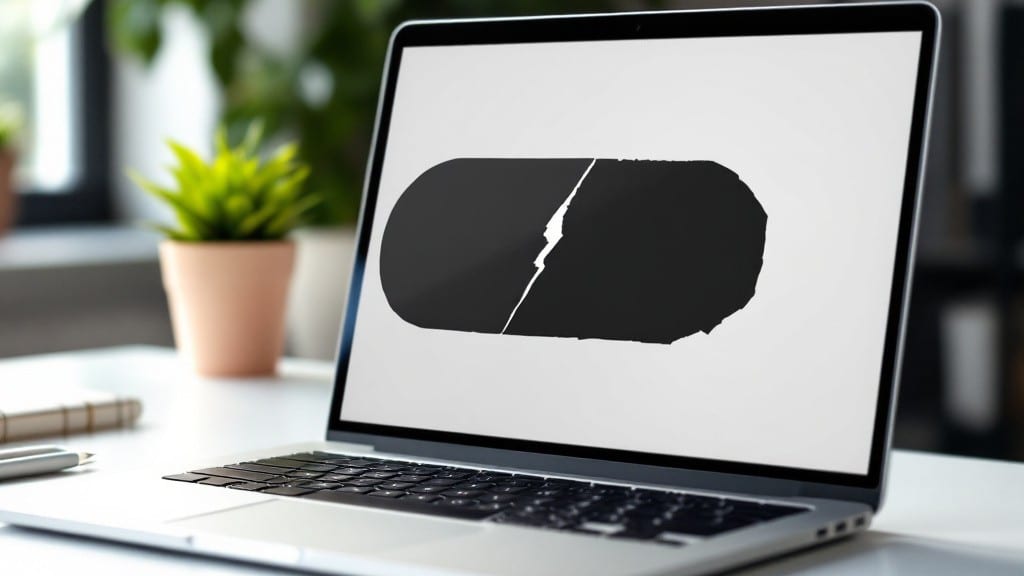
A black box appearing on your laptop screen is one of the most frustrating glitches—it’s happened to me more times than I’d like to admit, usually right before an important meeting. The good news? Nine times out of ten, it’s not a hardware failure waiting to happen.
My first thought when I see it is always the same: driver issues or a corrupted display setting—and those fixes are almost always quick once you know where to look.
The black box itself is usually a symptom of a deeper problem, whether it’s a misbehaving GPU driver, a misconfigured display profile, or even a background app hogging resources.
I’ve fixed this on everything from my trusty ThinkPad to high-end gaming laptops using the same basic steps: restarting the graphics driver, checking for Windows updates, or resetting the display settings to default. The key is narrowing down whether it’s software or hardware causing the issue.
You’ll likely solve it in under 10 minutes with the right approach—no deep technical knowledge required. We’ll start by ruling out the most common causes, then move to more advanced fixes if needed.
Trust me, you’ll feel like a tech detective by the end, and your screen will be back to normal faster than you’d expect.
This works for both Windows and Linux users, though the steps differ slightly. If you’re on Windows, we’ll use Device Manager and Event Viewer to dig deeper; Linux users can rely on terminal commands to reset display configurations.
Either way, you’ll walk away with a clearer understanding of what triggered the black box—and how to prevent it from coming back.
Why it happens
A mysterious black box popping up on your laptop screen can be frustrating—especially when you're in the middle of work or gaming. 😤 But don’t panic! These boxes usually appear due to software glitches, hardware quirks, or even external factors.
Let’s break down the most common reasons why this happens, so you can troubleshoot like a pro.
🖥️ Software Rendering Errors
Sometimes, your laptop’s graphics driver or operating system struggles to render content correctly, leading to black boxes or distorted visuals. This often happens when:
- Graphics drivers are outdated or corrupted: Drivers act as translators between your OS and hardware. If they’re outdated or buggy, your laptop may fail to display certain elements properly, causing black boxes—especially in games, videos, or apps using advanced graphics (like Adobe Photoshop or Blender).
- DirectX or OpenGL conflicts: These are APIs (Application Programming Interfaces) that handle graphics rendering. If they’re misconfigured or conflicting with other software, parts of your screen may turn black or freeze.
- High-DPI scaling issues: On Windows, if your display settings are set to a high resolution or scaling percentage that your app isn’t optimized for, it may render black boxes over text or images. This is common in older applications not designed for modern high-res screens.
Actionable fix: Update your graphics drivers via Device Manager (Windows) or System Preferences (Mac). For DirectX/OpenGL issues, run a system file checker or reinstall the latest versions.
🔌 Hardware or Display Problems
Black boxes can also stem from physical issues with your laptop’s hardware. Here’s what to suspect:
- Faulty or loose display cables: Laptops use thin, flexible cables to connect the screen to the motherboard. If these cables are damaged or disconnected (even slightly), parts of your display may turn black. This is more common in older laptops or those that have been dropped.
- GPU overheating: If your dedicated or integrated graphics card overheats, it may throttle performance or shut down temporarily, causing black screens or artifacts. This is often accompanied by fan noise or sudden slowdowns.
- Backlight failure: While less common, a failing backlight (especially in OLED or LED screens) can cause localized black spots or boxes. This is usually a hardware issue requiring professional repair.
Actionable fix: Gently wiggle your laptop (if comfortable) to see if the black box moves—this could indicate a loose cable. Use a tool like HWMonitor to check GPU temperatures. If overheating is the issue, clean your laptop’s vents or consider a cooling pad.
🎮 App or Game-Specific Glitches
Some applications, especially games or media players, are notorious for rendering black boxes due to their complex demands. Here’s why:
- Unsupported or buggy software: Newer games or apps may not be fully optimized for your laptop’s hardware, leading to rendering errors. For example, a game using Vulkan API might crash and display a black screen if your drivers lack support.
- Corrupted game files: If game files are missing or corrupted (e.g., due to a bad download or interrupted update), the game may fail to load textures or UI elements, resulting in black boxes.
- Full-screen exclusivity mode conflicts: Some games or apps lock your GPU in full-screen mode. If another program tries to access the GPU simultaneously, it can cause black screens or crashes.
Actionable fix: Reinstall the problematic app or verify its files via the game launcher (e.g., Steam’s "Properties" > "Installed Files" > "Verify Integrity"). For games, try launching them in Windowed Mode or compatibility settings.
🔄 Driver or System Corruption
Your laptop’s operating system relies on drivers and system files to function smoothly. When these get corrupted, visual glitches like black boxes can appear:
- Windows Update or driver rollback: A failed update or a driver update that’s incompatible with your hardware can cause display issues. For example, NVIDIA or AMD drivers sometimes introduce bugs that manifest as black screens.
- Corrupted system files: Over time, Windows or macOS files can become fragmented or damaged, leading to rendering errors. This is often triggered by abrupt shutdowns or malware.
- Antivirus or firewall interference: Overzealous security software may block legitimate processes, causing apps to fail and display black boxes as a result.
Actionable fix: Run System File Checker (Windows) or Disk Utility (Mac) to repair corrupted files. Temporarily disable your antivirus to test if it’s the culprit. If a recent update caused the issue, roll back the driver via Device Manager.
🔌 External Peripheral Issues
Even peripherals connected to your laptop can trigger black boxes. Here’s how:
- Faulty HDMI/DisplayPort cables or adapters: If you’re using an external monitor and a black box appears, the issue might lie with the cable or adapter. Damaged cables can interrupt the signal, causing parts of the screen to go black.
- Incompatible or malfunctioning GPU: External GPUs (eGpus) or docking stations may not play nice with your laptop’s integrated graphics, leading to display artifacts or black screens.
- Power delivery issues: Some laptops (especially gaming or high-performance models) require stable power delivery. If your charger or power settings are misconfigured, it can cause sudden blackouts or glitches.
Actionable fix: Test your laptop with a different cable or monitor to isolate the issue. For eGPUs, ensure your laptop’s BIOS supports external graphics. Check your power settings in Control Panel (Windows) or Energy Saver (Mac).
How to solve it
Encountering a black box on your laptop can be frustrating, but the good news is that most issues have simple fixes. Below, we’ve mapped out step-by-step solutions tailored to the most common causes—from software glitches to hardware hiccups. Follow these troubleshooting steps to restore your screen and prevent future disruptions.
🔥 Fix 1: Restart Your Laptop (Software Glitch)
A sudden black screen is often caused by a minor software freeze. Before diving into complex fixes, try the simplest solution first.
👨💻 Step 1: Force Restart (If Screen Is Frozen)
- Windows: Hold down the Power button for 5–10 seconds until the laptop shuts off. Wait 30 seconds, then press the power button to turn it back on.
- Mac: Press and hold Control + Option + Command + Power button for 10 seconds to force a restart.
🔄 Step 2: Check for Updates After Restart
Once your laptop boots up, ensure your operating system and drivers are up to date:
- Windows: Go to Settings > Update & Security > Windows Update and install any pending updates.
- Mac: Click the Apple menu > System Settings > General > Software Update.
💡 Pro Tip: If the black screen reappears after a restart, the issue may be deeper—skip to Fix 3 (Driver Issues) or Fix 5 (Hardware Problems).
🖥️ Fix 2: Safe Mode Boot (Malware or Corrupt Software)
If your laptop boots into a black screen with no cursor or error messages, it might be due to malware, a corrupted app, or conflicting software. Booting into Safe Mode can help identify and resolve the issue.
🔒 Step 1: Enter Safe Mode
- Windows:
- Restart your laptop and repeatedly press the F8 key (or Shift + F8 on newer PCs) before the Windows logo appears.
- Select Safe Mode with Networking from the troubleshooting menu.
- Mac:
- Shut down your Mac, then turn it on while holding Shift until the login screen appears.
- Log in to Safe Boot mode.
🔍 Step 2: Scan for Malware & Uninstall Recent Apps
Once in Safe Mode:
- Run a malware scan using Windows Defender (Windows) or Malwarebytes (Mac).
- Uninstall recently installed programs that might be causing conflicts (Settings > Apps > Installed Apps on Windows).
- Update or reinstall GPU drivers (see Fix 3 for details).
✨ Prevention Tip: Avoid downloading software from untrusted sources and keep your antivirus updated to block malicious programs.
🖱️ Fix 3: Update or Reinstall GPU Drivers (Graphics Issues)
A black screen often appears when your graphics driver is outdated, corrupted, or incompatible with your system. Updating or reinstalling it can resolve display problems.
🔄 Step 1: Update GPU Drivers
- Windows:
- Press Win + X and select Device Manager.
- Expand Display adapters, right-click your GPU, and choose Update driver.
- Select "Search automatically for drivers" and follow the prompts.
- Mac: macOS automatically manages drivers, but you can update via System Settings > Software Update.
🔄 Step 2: Reinstall GPU Drivers (If Update Fails)
If updating doesn’t work, a clean reinstall may help:
- Download the latest driver from the manufacturer’s website (NVIDIA, AMD, or Intel).
- In Device Manager, right-click your GPU and select Uninstall device (check "Delete the driver software").
- Restart your laptop and install the new driver.
💡 Pro Tip: If you’re unsure which GPU you have, use DirectX Diagnostic Tool (Windows) or System Information (Mac) to check.
🔌 Fix 4: Check External Displays & Connections
If the black screen appears when connecting an external monitor, the issue could be with the HDMI/DisplayPort cable, adapter, or port.
🔌 Step 1: Inspect Cables & Ports
- Disconnect and reconnect the external display cable firmly.
- Try a different cable or port (if available).
- Test the external monitor with another device to rule out monitor failure.
🖥️ Step 2: Enable External Display in Windows
If the external screen remains black:
- Press Win + P and select "Extend" or "Second screen only".
- If no response, right-click the desktop, select Display settings, and ensure the external display is detected.
🎯 Prevention Tip: Avoid using damaged cables, and keep a backup cable handy for emergencies.
🔧 Fix 5: Hardware Checks (Loose Connections or Faulty Components)
If software fixes don’t work, the issue may be hardware-related, such as a loose RAM stick, failing GPU, or dead battery (on laptops).
🔍 Step 1: Test RAM (Memory Issues)
- Turn off your laptop and unplug it.
- Open the back panel (if comfortable) and reseat the RAM sticks—press them firmly back into place.
- If you have two RAM sticks, try using only one at a time to check for conflicts.
🔥 Step 2: Check GPU & Cooling
- Ensure the GPU cooling fan is working (listen for unusual noises).
- If your laptop overheats, clean the vents with compressed air.
- For desktops, reseat the GPU card in its slot.
🔋 Step 3: Test with Minimal Hardware (Last Resort)
If possible, remove non-essential components (like extra RAM or USB devices) and boot the laptop with only the CPU, motherboard, and essential RAM to isolate the issue.
🚨 Warning: If you’re uncomfortable opening your laptop, take it to a professional technician—hardware issues can worsen if mishandled.
🛡️ Prevention Tips to Avoid Future Black Screens
Once your laptop is back in working order, take these steps to prevent black screens from recurring:
- 🔄 Keep drivers updated—enable automatic updates for
Frequently asked questions
Why does a black box appear only when I open certain apps?
This usually happens when an app uses advanced graphics features that your GPU drivers can't handle properly. Common culprits include games, video editors, or 3D modeling software. Try updating your graphics drivers or running the app in compatibility mode with lower graphics settings.
Could a virus cause a black box on my screen?
While viruses don't directly create black boxes, malware can corrupt system files or interfere with display drivers, leading to visual glitches. Run a full system scan with Windows Defender or Malwarebytes, and check for recently installed suspicious programs in Safe Mode.
What should I do if my laptop screen goes completely black but still powers on?
This is often a hardware issue like a loose display cable or failing backlight. Gently wiggle your laptop (if comfortable) to see if the black area moves. If not, check your GPU temperatures with HWMonitor - overheating can cause sudden blackouts. Try a hard reset if the laptop remains unresponsive.
Why does this happen more often when I connect an external monitor?
External display issues typically stem from faulty cables, incompatible resolution settings, or driver conflicts between your laptop's integrated and external GPUs. Try a different cable, reset your display settings to default, or update both your integrated and dedicated GPU drivers.
Is it safe to keep using my laptop if black boxes keep appearing?
While occasional black boxes are usually harmless, frequent occurrences - especially when accompanied by overheating or crashes - could indicate serious hardware problems. If the issue persists after trying software fixes, consider professional diagnostics to prevent potential data loss or permanent damage.