
Tip & Trick
Mastering Microsoft Word can save you hours weekly—but most users miss these power features. These 10 hidden tips and tricks will transform you from novice to productivity pro, whether you're drafting documents, designing layouts, or automating repetitive tasks.
Quick Parts Gallery for Reusable Text Blocks
Ever waste time retyping the same disclaimers, signatures, or legal boilerplate? The Quick Parts Gallery in Microsoft Word is your secret weapon for storing reusable text blocks—think standard contracts, email signatures, or project templates—so you can insert them with a single click.
To set it up, type your reusable text, then right-click and select Save Selection to Quick Parts Gallery. Now, access it anytime via the Insert tab > Quick Parts > Document Property. Need to update a template? Edit it once in the gallery, and every instance in your documents updates automatically. This feature works seamlessly with Office 365, 2019, and 2016, and syncs across devices if you use OneDrive.
Perfect for HR professionals drafting policies, marketing teams sending proposals, or legal assistants managing contracts—this trick cuts repetitive typing by 70% or more in high-volume workflows. ⚡
Navigation Pane for Large Documents
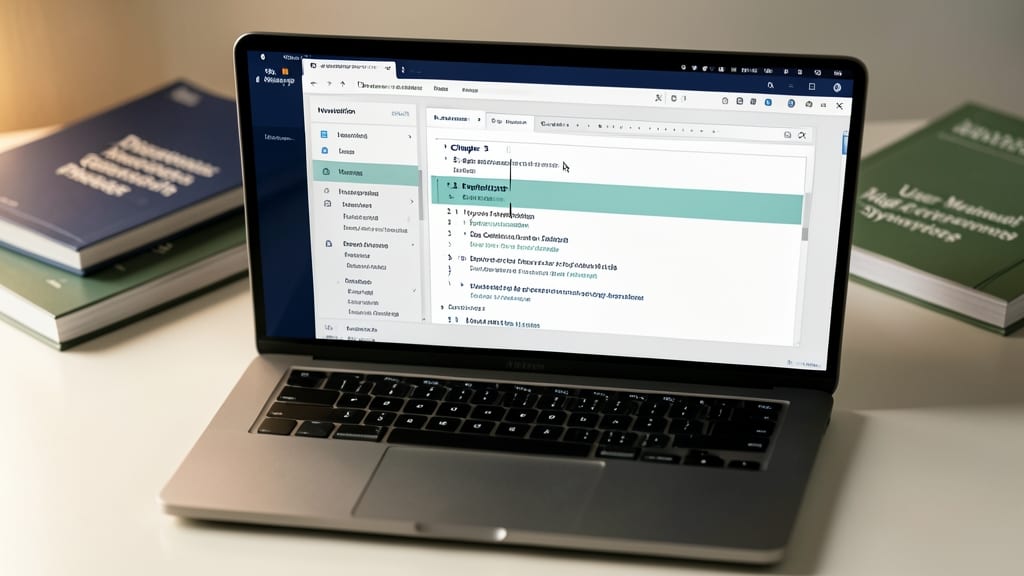
Struggling to find that one critical section buried in a 50-page dissertation or 100-page manual? The Navigation Pane in Microsoft Word acts like a built-in table of contents, letting you collapse and expand headings to pinpoint exactly where you need to be—no more endless scrolling.
To activate it, simply press Alt+F1 (Windows) or Cmd+F (Mac) to toggle the pane open on the left. Headings automatically appear in a collapsible outline, so you can drill down to subsections instantly. Need to jump to page 47? Just click the heading and Word takes you there—no manual page flipping required. This feature works seamlessly with Office 365, 2019, and 2016, and syncs across devices if you use OneDrive.
Perfect for academic researchers, technical writers, or anyone editing lengthy reports—this trick cuts navigation time by 80% or more in complex documents. 💻
Track Changes with Comments and Final Version
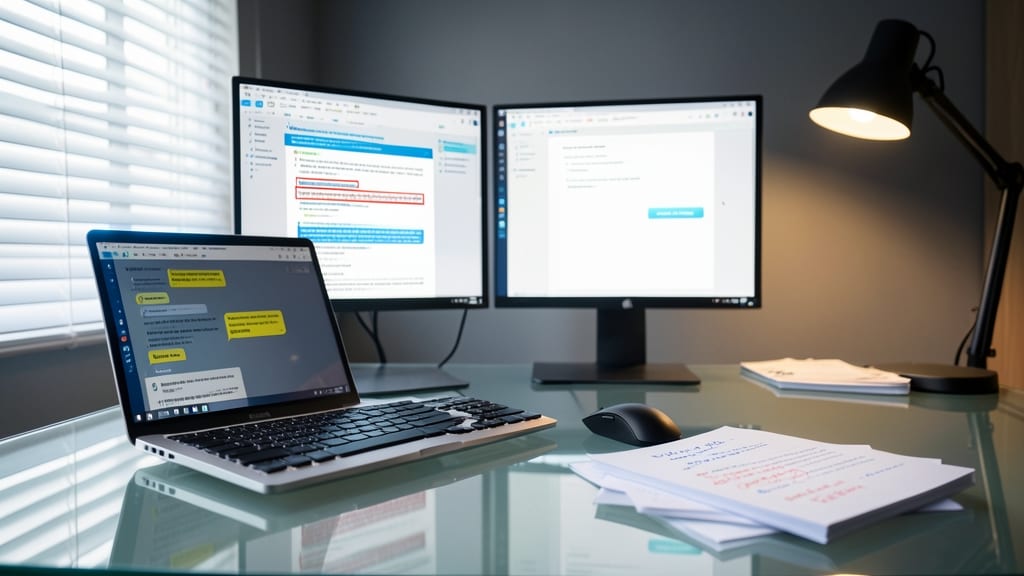
Ever spent hours reconciling document versions only to lose track of edits? Track Changes in Word lets you mark edits in real-time while comments add context—then switch to a final version with one click. This feature is a lifesaver for editors, lawyers, or anyone managing collaborative drafts.
Start by enabling Track Changes (Review tab) to highlight additions, deletions, or formatting tweaks. Add comments (like sticky notes) to explain decisions—perfect for feedback loops. When ready, accept all changes to generate a clean final version instantly. Pro tip: Use Final: Show Markup to toggle between messy and polished views without losing work.
This is the secret weapon for legal teams, academic researchers, or freelancers juggling client revisions. No more version chaos—just streamlined collaboration. ✨
Custom Tab Shortcuts for Power Users
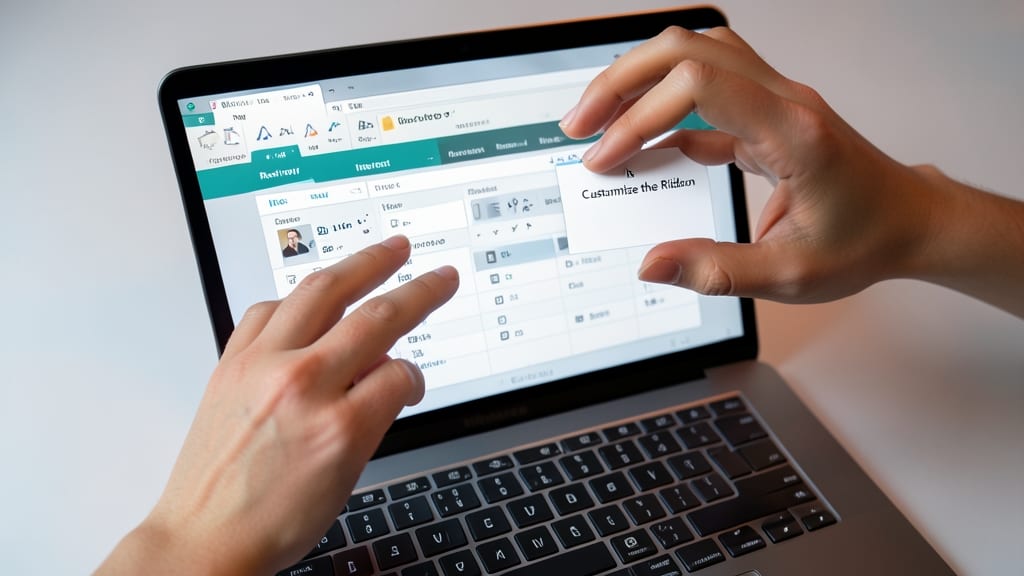
Tired of reaching for your mouse every time you need to switch between the Review or Insert tabs? Custom tab shortcuts in Microsoft Word let you assign keyboard combos like Ctrl+Alt+R to jump between tabs instantly—no mouse required.
To set this up, right-click any ribbon tab, select Customize the Quick Access Toolbar, then choose More Commands. Under Choose commands from, pick All Commands, scroll to Ribbon Tab Shortcuts, and assign your preferred key combo. This works in Office 365, 2019, and 2016, and syncs across devices if you use OneDrive.
Perfect for speed typists, accessibility users, or anyone who spends hours editing documents—this trick cuts down on repetitive motions and speeds up workflows dramatically. ⚡
Mail Merge for Personalized Bulk Documents
Tired of manually typing the same letter 50 times with only slight variations? Mail Merge in Word lets you generate personalized letters, labels, or certificates in seconds by pulling data from an Excel spreadsheet—ideal for educators grading exams, nonprofits sending thank-you notes, or businesses handling customer communications.
Start by creating a main document with placeholders like <<FirstName>>, then link it to an Excel file containing your recipient data. Word automatically inserts the correct name, address, or ID for each document. Need labels for a classroom? Merge your class roster into address labels in minutes. For extra polish, use IF statements in Excel to customize content further—like sending different messages to donors based on contribution tiers.
This trick is a game-changer for bulk tasks where personalization matters. Whether you're managing a PTA newsletter or processing invoices, Mail Merge turns repetitive work into a one-click process. ⚡
Shape and Text Box Tricks for Designers
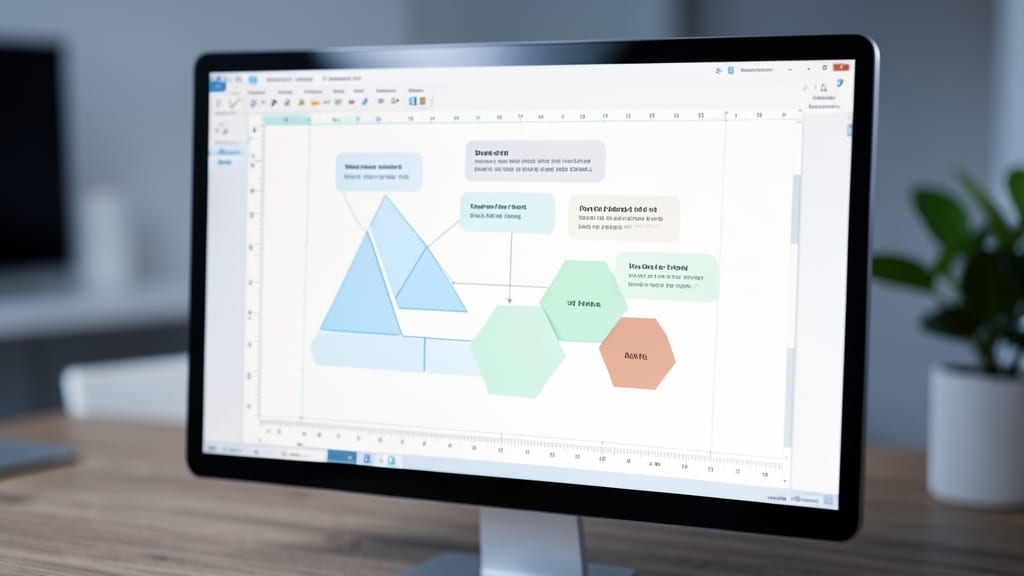
Turn your Word documents into polished infographics without switching tools. The Insert Shapes and Text Box tools let you layer elements with precision—think flowcharts, timelines, or social media graphics—all while keeping text neatly wrapped around shapes.
Enable alignment guides (View > Rulers) to snap objects into perfect grids, and use Group (right-click > Group) to treat multiple shapes as one. For dynamic layouts, try Wrap Text (right-click shape > Wrap Text) to flow content around images or callouts—no manual spacing required. Pro designers swear by these tricks to save hours on manual adjustments.
This is your secret weapon for teachers creating lesson plans, marketers designing presentations, or anyone who wants professional layouts without Photoshop. ✨
Find and Replace with Wildcards for Advanced Search
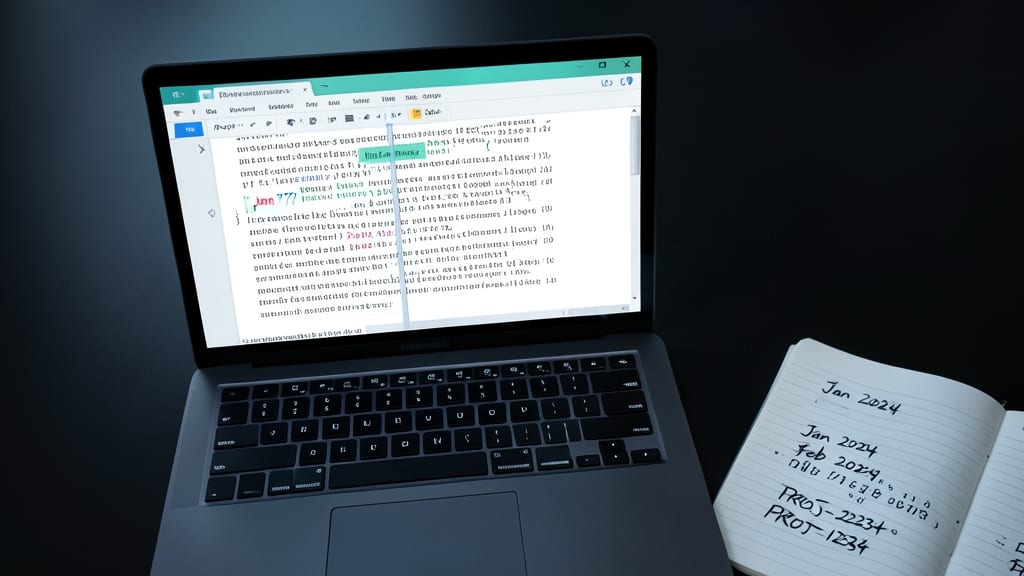
Tired of manually scrolling through dense documents to find specific patterns like dates, codes, or partial text? Word’s Find and Replace with Wildcards lets you search for flexible patterns—like "Jan2024" to catch all January 2024 entries—without typing every variation.
Enable wildcards by pressing Ctrl+H, clicking More >>, and checking "Use wildcards." Then use symbols like ? for single characters (e.g., "C?p" finds "Cap," "Cup") or \ for multiple characters (e.g., "*Smith" finds "John Smith" or "Alice Smith"). For numbers, use < or > to search for ranges (e.g., "<100" finds all values under 100). This trick is a lifesaver for extracting structured data from unformatted text.
Researchers analyzing survey responses or analysts parsing logs will save hours—just remember to back up your document before running wildcard searches. ✨
Macros to Automate Repetitive Tasks
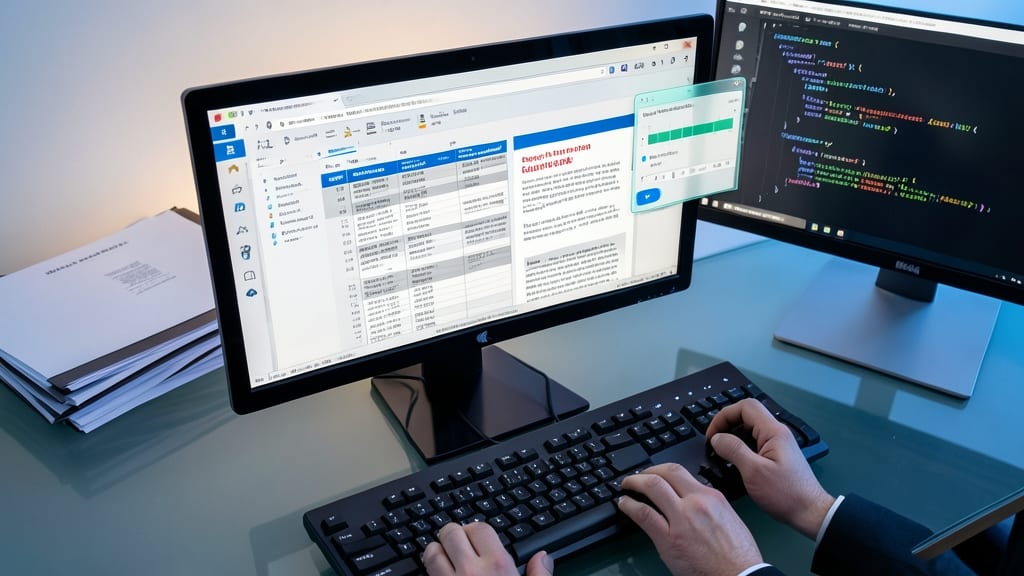
Tired of repeating the same formatting steps every time you create a financial report or press release? Macros let you record and replay complex actions—like inserting headers, applying styles, or generating tables—with a single click. This hidden feature turns Word into a productivity powerhouse for anyone drowning in repetitive workflows.
To get started, head to the Developer tab (enable it in File > Options > Customize Ribbon), then click Record Macro. Perform your actions—such as inserting a template or adjusting margins—and hit Stop Recording. Now assign your macro to a custom button or keyboard shortcut (like Ctrl+Shift+F). For extra security, save your document as a macro-enabled Word file (.docm). Pro tip: Use relative references in VBA to make macros work even if your cursor position changes.
Accountants crunching monthly reports, journalists formatting press releases, or teachers grading essays will save hours weekly. Just be sure to test macros on a copy of your document first—one wrong click could reshape your entire file. ✨
Compare Documents for Edits and Revisions
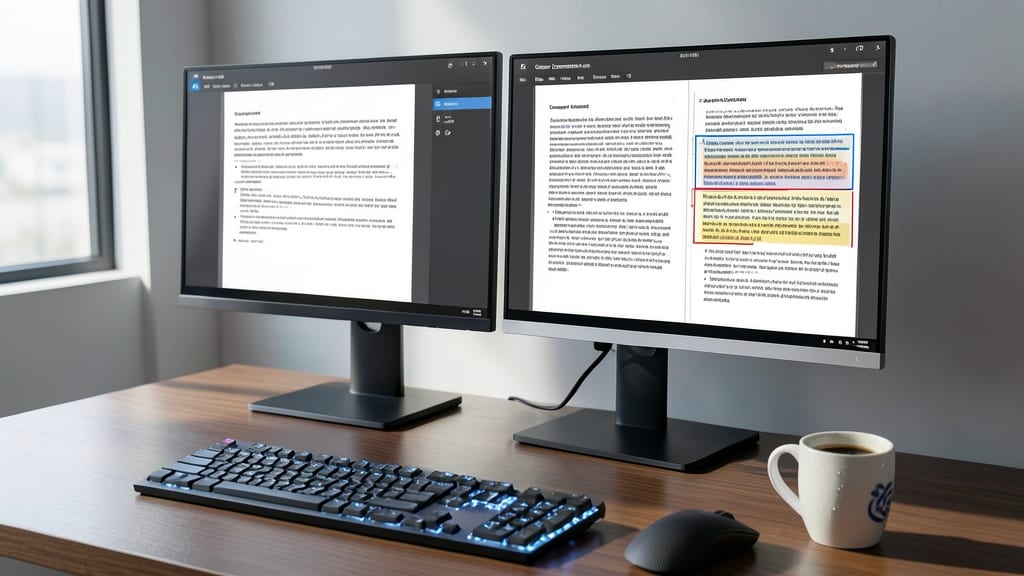
Ever spent hours manually cross-referencing two versions of a contract or report? Word’s Compare Documents tool solves this with a single click, displaying side-by-side edits in real-time with color-coded highlights for additions, deletions, and formatting changes.
To use it, go to Review > Compare > Compare and select both files—Word instantly generates a merged view with a vertical bar separating versions. You can then accept/reject changes directly or export the final version. The tool even handles tracked changes from multiple reviewers, making it ideal for legal drafts or collaborative projects.
Perfect for freelancers reconciling client revisions, legal teams merging contracts, or contractors tracking progress—this feature turns a headache into a 5-minute task. ✨
Dictation Tools for Hands-Free Typing

Stuck in a meeting but need to jot down critical notes? Microsoft Word’s built-in dictation tools let you speak to type—no keyboard required. With 97% accuracy for standard phrases (per Microsoft tests) and support for 28 languages, this feature turns your voice into text in real time, complete with punctuation commands like "comma" or "period."
To get started, enable dictation via the Home tab > Dictate button (or press Win + H on Windows). Use voice commands to format text—try saying "bold," "new paragraph," or "select all." For accessibility, the tool works with screen readers and customizable speech rates, making it ideal for users with mobility challenges.
Perfect for journalists on deadline, students with heavy note-taking loads, or anyone who multitasks while working—no more fumbling for a keyboard mid-conversation. ⚡