
Tip & Trick
Microsoft OneNote 2013 remains a powerhouse for note-taking and organization, but many users miss its hidden productivity boosters. These seven underrated tips will transform your workflow—from advanced formatting to automation shortcuts—so you can work smarter, not harder.
Quick Capture with Keyboard Shortcuts

Need to capture a fleeting idea, a meeting highlight, or a web snippet—without opening OneNote? The Win+S and Ctrl+Shift+S shortcuts turn your keyboard into a capture powerhouse, instantly saving text, screenshots, or web clips directly into OneNote. No app-switching, no delays—just seamless integration with your workflow.
Press Win+S to launch the Windows search bar, then select "Screen sketch" or "Snipping Tool" to capture anything on-screen. For quick web clippings, highlight text on a webpage and press Ctrl+Shift+S—OneNote magically pastes it into your active notebook. These zero-configuration shortcuts work across devices and sync automatically if cloud sync is enabled, making them perfect for researchers jotting down references or meeting attendees preserving key points mid-discussion.
This trick is a game-changer for anyone who values speed over perfection. Researchers, students, and professionals who multitask across apps will love how these shortcuts eliminate friction—no more fumbling to open OneNote or losing context. Try it next time you need to capture something fast! ⚡
Section Tabs for Organized Notebooks
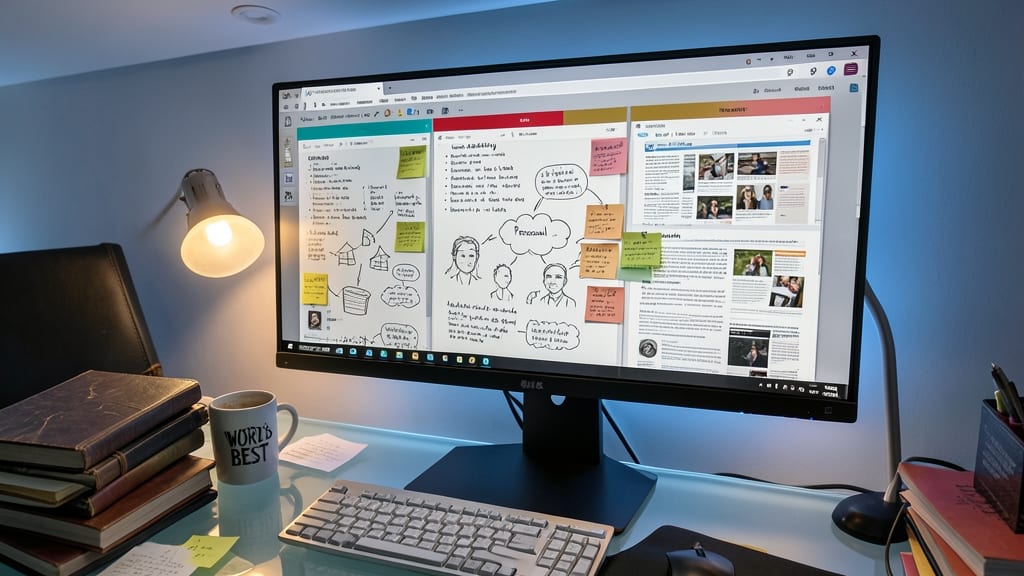
Drowning in a sea of notebooks, each stuffed with different projects? OneNote 2013’s section tabs turn your digital workspace into a visual command center—no more flipping through endless pages to find what you need. These color-coded tabs act like physical dividers in a binder, letting you group related content (like client folders or coursework) with a single click.
To set them up, simply right-click any section in the left-hand navigation pane and choose Rename—then assign a color-coded label (red for urgent, blue for work, green for personal). Need to reorganize? Drag and drop tabs like you would with folders. The visual hierarchy makes it effortless to spot your math homework next to your marketing campaign notes at a glance, while the search bar still works across all tabs for instant access.
This trick is a lifesaver for students juggling exams or freelancers managing multiple clients—your notes stay organized without the mental overhead. Try it next time your notebook feels like a digital junk drawer! 💻
Handwriting to Text Conversion

Ever scribbled a brilliant idea on a sticky note or whiteboard, only to lose it when you can’t read your own handwriting? OneNote 2013’s handwriting-to-text conversion turns messy notes into editable digital text—no third-party tools needed. Just draw or write naturally, then let the built-in OCR (Optical Character Recognition) do the rest.
To use it, simply write or sketch on a page, then right-click your handwritten content and select Copy Text from Picture. OneNote instantly converts your notes into clean, searchable text—perfect for doctors transcribing scribbled prescriptions or engineers digitizing rough calculations. The feature even handles math equations and tables with surprising accuracy, saving hours of manual retyping.
This trick is a lifesaver for anyone who thinks faster than they type—especially professionals who rely on quick, unstructured brainstorming sessions. Give it a try next time you’re jotting down ideas on the fly! ✨
Template Gallery for Reusable Layouts
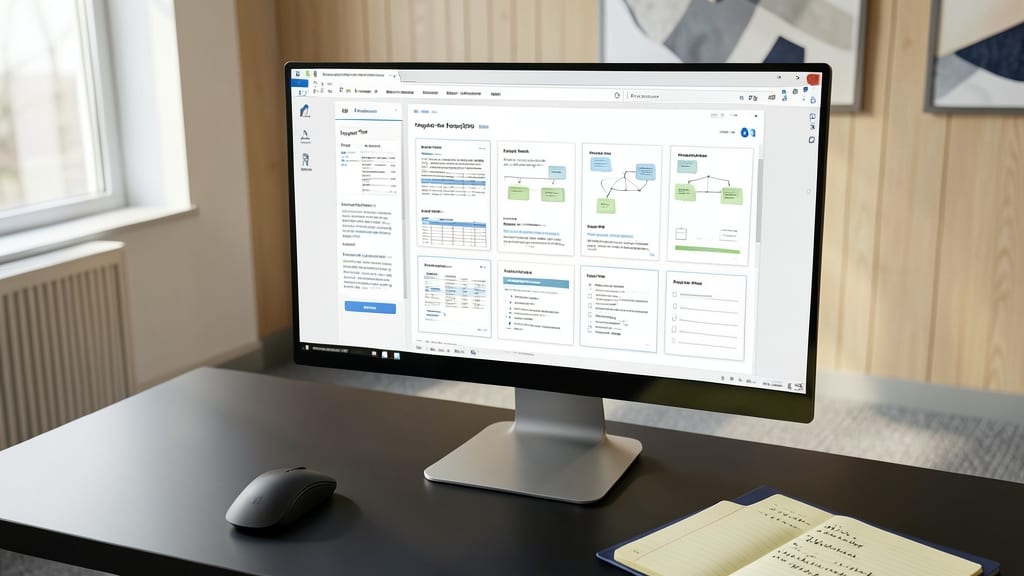
Tired of recreating the same meeting minutes or project plans from scratch every time? Microsoft OneNote 2013’s Template Gallery is your secret weapon—packed with pre-formatted layouts for everything from agendas to brainstorming sessions. Simply navigate to the Insert tab, click Templates, and pick from options like Meeting Notes, , or Planners—each designed to save you hours of setup while keeping your workflow consistent.
These templates aren’t just static either: they’re fully editable, so you can tweak headings, add custom sections, or resize tables without starting from zero. Need a client onboarding checklist? There’s one ready to go. Planning a quarterly review? The Project Plan template includes timelines and task boxes. Best of all, they sync seamlessly with your notebooks, so your team can collaborate without reinventing the wheel every time. ⚡
Draw Tab for Custom Diagrams
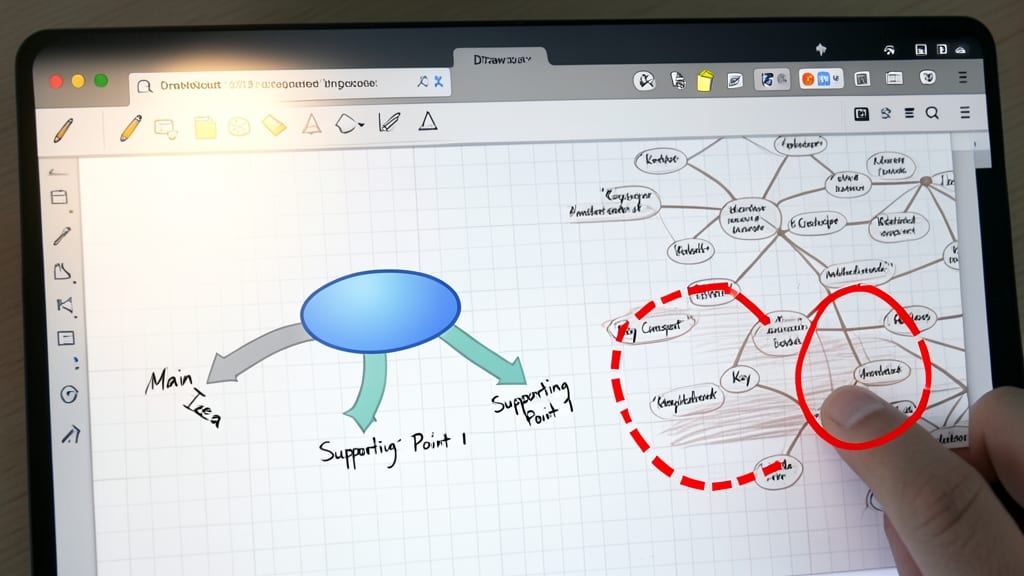
Skip the extra software—OneNote 2013’s Draw tab lets you create polished flowcharts, mind maps, or annotations directly in your notebook. No plugins, no learning curves, just instant visual thinking with tools built right into the app.
Access it by clicking the Insert tab, then Draw. Here you’ll find laser-precise shapes (arrows, boxes, callouts), a ruler and protractor for perfect angles, and digital inking that converts sketches into editable vectors. Need to connect ideas? The connectors tool snaps lines between shapes automatically—ideal for brainstorming sessions or lesson plans.
Educators teaching complex concepts or designers sketching wireframes will love this—no need to switch between apps. Just sketch, refine, and export your diagrams as PNG or PDF when ready. ✨
Sync Across Devices with Cloud

Tired of losing notes when switching between your laptop, tablet, and phone? OneNote 2013’s cloud sync ensures every update—whether typed, drawn, or pasted—appears instantly across all devices. No more emailing yourself files or juggling USB drives; your notebook stays in perfect sync with OneDrive integration as the backbone.
To enable it, simply sign in with your Microsoft account under File > Account Info, then toggle "Sync notebooks to OneDrive" (if using OneDrive). Your notes will auto-update in real time, even offline—changes sync the moment you reconnect. The cross-device compatibility extends to Windows, Mac, iOS, and Android, making it ideal for remote teams or students who rely on multiple screens.
Perfect for digital nomads, field researchers, or hybrid workers, this feature turns OneNote into a seamless, always-accessible workspace. Your ideas flow without friction—no matter where you are. ✨
Search Within Handwritten Notes
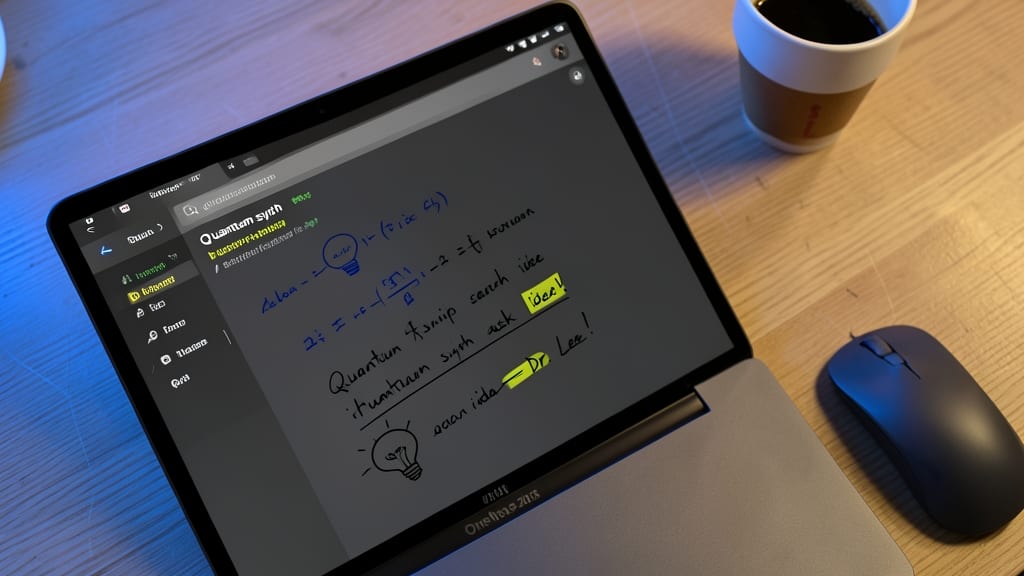
Ever scribbled down a brilliant idea in a lecture but struggled to find it later? OneNote 2013’s handwritten search lets you find specific words or phrases within ink notes—no typing required. Simply type your query in the search bar, and the app highlights matches in both typed and handwritten content.
This feature works seamlessly with OCR technology, recognizing handwriting across notebooks. Need to revisit a formula from a math class or a client’s handwritten feedback? Just search for keywords like "integral" or "deadline," and OneNote pinpoints exact locations. The search even handles abbreviations and messy handwriting, making it ideal for researchers or students.
Perfect for academics, engineers, or anyone drowning in handwritten notes—this trick turns your notebook into a searchable digital archive. ⚡