
PowerPoint
High school students can boost their grades and portfolios with creative Microsoft Office projects that showcase skills beyond basic assignments. These ten standout ideas leverage PowerPoint, Excel, and Word to create polished, professional work that impresses teachers and college admissions officers alike.
Interactive Historical Timeline Using PowerPoint Morph

Turn static history assignments into dynamic storytelling with PowerPoint Morph, a feature that lets students animate transitions between slides with smooth, professional effects. Instead of just listing dates, students can visually connect events—like the morph from a 1920s flapper dress to a 1930s Great Depression poster—to show cause-and-effect relationships in seconds.
This tool works with PowerPoint 2016 and later, requiring no coding or design skills. Simply insert images or shapes, then use the Morph transition to animate changes between slides. Add timelines with icons (e.g., a globe for WWII) and color-coded themes (e.g., red for revolutions, blue for scientific breakthroughs) to reinforce visual learning. The result? A presentation that feels like a mini-documentary, not a textbook summary.
Perfect for history buffs, visual learners, or students preparing for competitions—this project builds digital literacy while making complex timelines unforgettable. ⚡
Personalized College Application Infographic in Excel
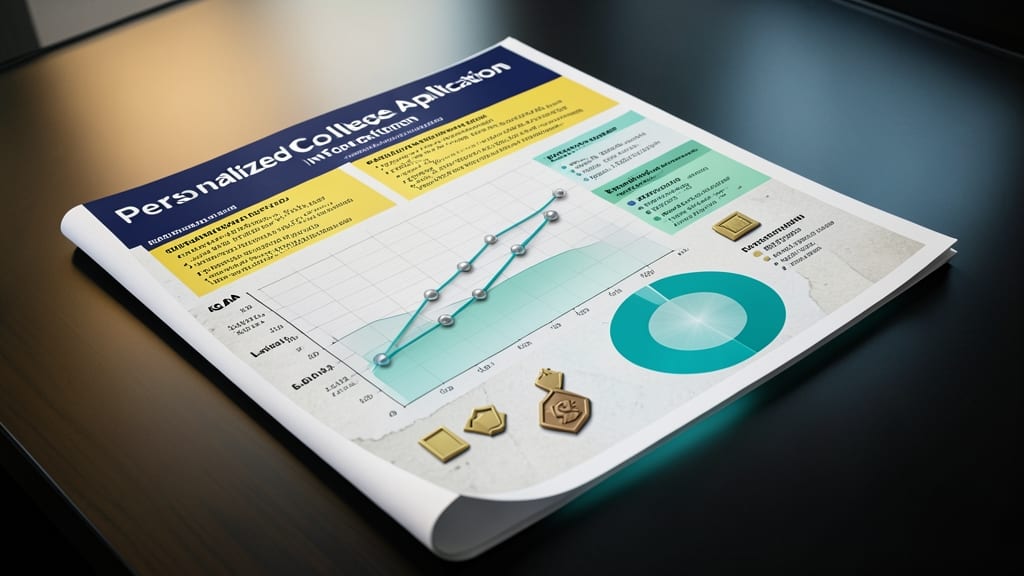
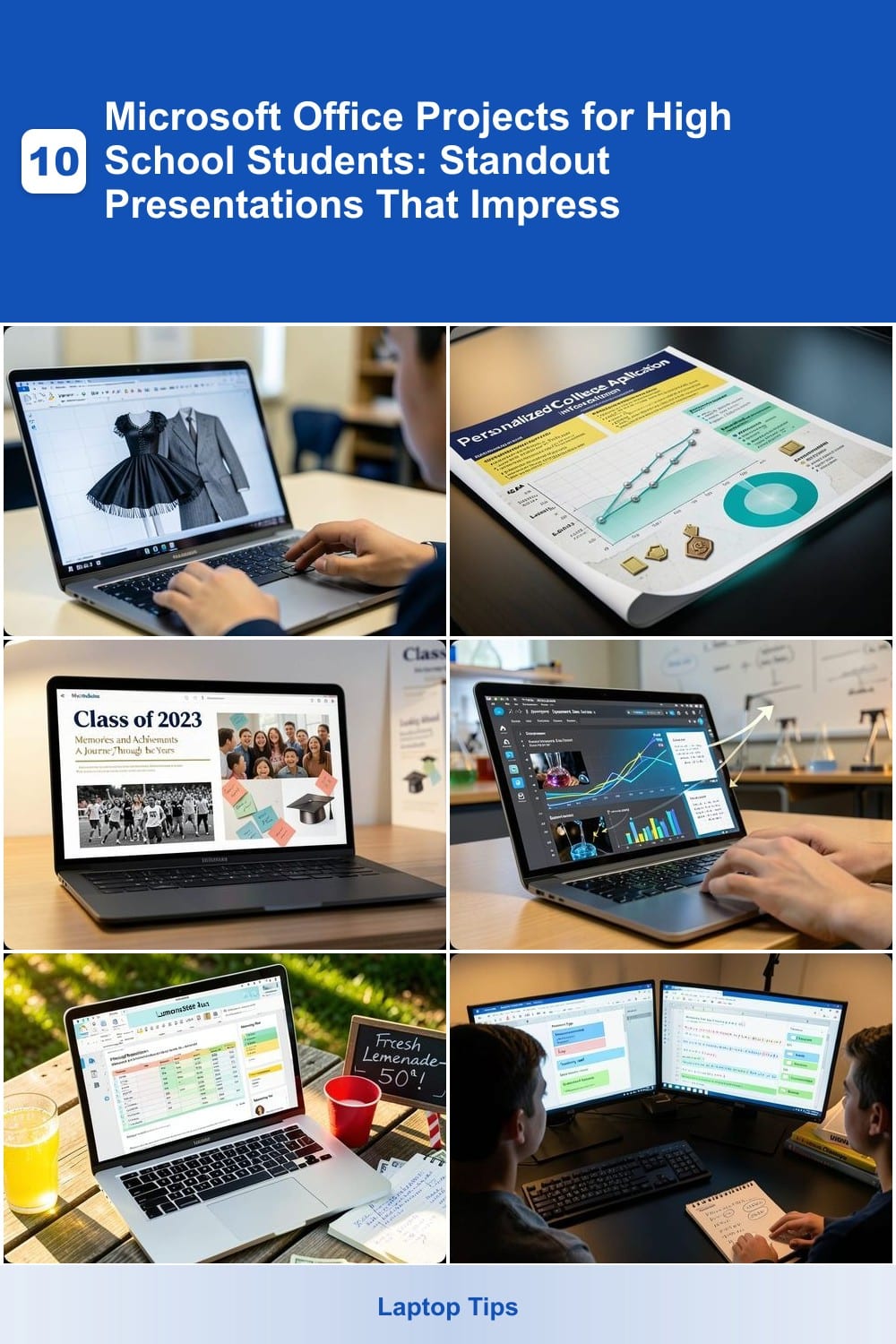
Stand out from the crowd with a Personalized College Application Infographic—a dynamic Excel project that turns your achievements into a visually striking portfolio piece. Unlike traditional resumes, this infographic uses charts, icons, and color-coded sections to highlight GPA trends, leadership roles, and future goals in a way that admissions officers can’t ignore.
Start by organizing data into three key sections: Academics (GPA, test scores, honors), Extracurriculars (clubs, sports, volunteer work), and Aspirations (career goals, research interests). Use Excel’s conditional formatting to create progress bars for achievements, and insert icons from Flaticon for visual appeal. For extra polish, add a photo collage of your activities and embed a short video clip (via hyperlink) to showcase skills like coding or public speaking.
This project is perfect for students applying to competitive programs or scholarships, as it demonstrates both technical skills and personal branding—two qualities colleges love. Plus, it’s easy to update as you add new accomplishments! ✨
Digital Yearbook Layout Using Publisher and Word
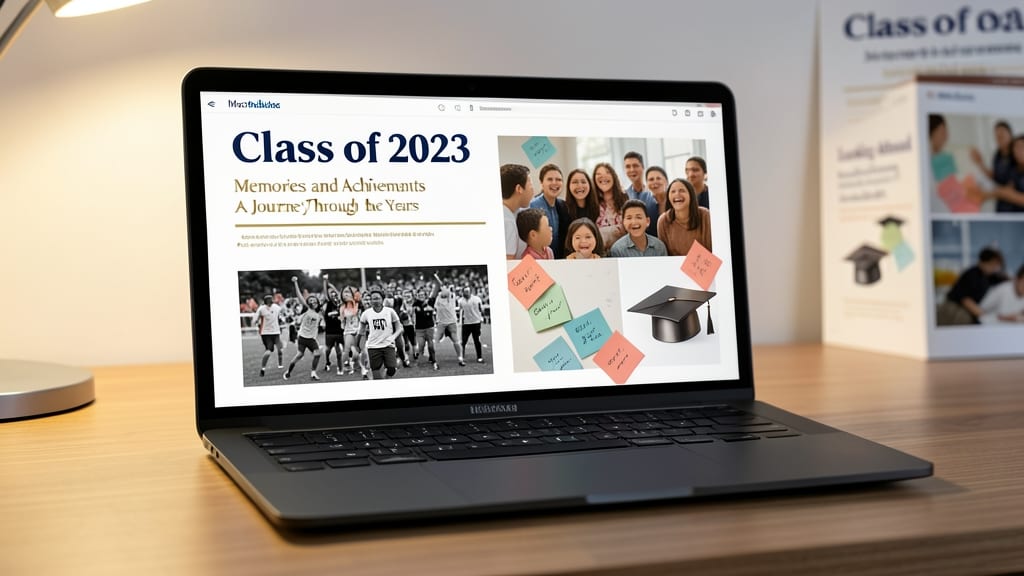
Turn your school memories into a showcase-worthy digital yearbook using Microsoft Publisher’s premium templates and Word’s collaboration tools. This project goes beyond paper layouts—teaching you professional design principles like typography hierarchy, color theory, and multi-page workflows that translate to real-world publishing jobs.
Start with Publisher’s built-in yearbook templates (available in the latest Office 365 Education versions) featuring bleed layouts and gold foil effects. Import student photos from Word’s document camera feature, then use Word’s mail merge to auto-populate names and captions. For extra polish, add interactive elements like hyperlinked indices or embedded video messages—skills that’ll impress any portfolio reviewer.
Perfect for student media clubs planning annual publications or individuals building personal branding portfolios. The same skills apply to creating resumes, brochures, or even small business marketing materials later. ✨
Science Experiment Data Dashboard in PowerPoint

Turn your lab notes into a dynamic science fair showstopper with a Science Experiment Data Dashboard in PowerPoint. Instead of static slides, embed live Excel charts, animated data trends, and even short video clips of your experiments—all while keeping the focus on your findings.
Start by importing your Excel spreadsheets directly into PowerPoint for real-time updates. Use morph transitions to smoothly animate between hypotheses, results, and conclusions. Add 3D models of lab equipment (download free STEM assets from Microsoft’s template library) to visually explain your setup. For extra impact, include a timeline animation that highlights key moments in your process.
This project is ideal for science fair competitors or students in AP Biology/Chemistry classes. It proves you can analyze data and present it compellingly—skills colleges love to see. ✨
Business Plan for Student Entrepreneurs Using Word

Turn your lemonade stand into a professional business plan using Word’s built-in templates and formatting tools. This project teaches real-world entrepreneurship by combining financial projections, marketing strategies, and polished presentation—all in a single document.
Start with Word’s Business Plan template (under New Document > Templates), then customize sections like executive summaries, market analysis, and 3-year financial forecasts. Use SmartArt graphics to visualize your business model and tables for expense tracking. The Researcher pane helps verify industry data, while Track Changes lets you refine your plan with feedback.
Perfect for students in business classes, future entrepreneurs, or anyone applying to college programs with a focus on innovation. 💡
Interactive Math Problem Solver in Excel
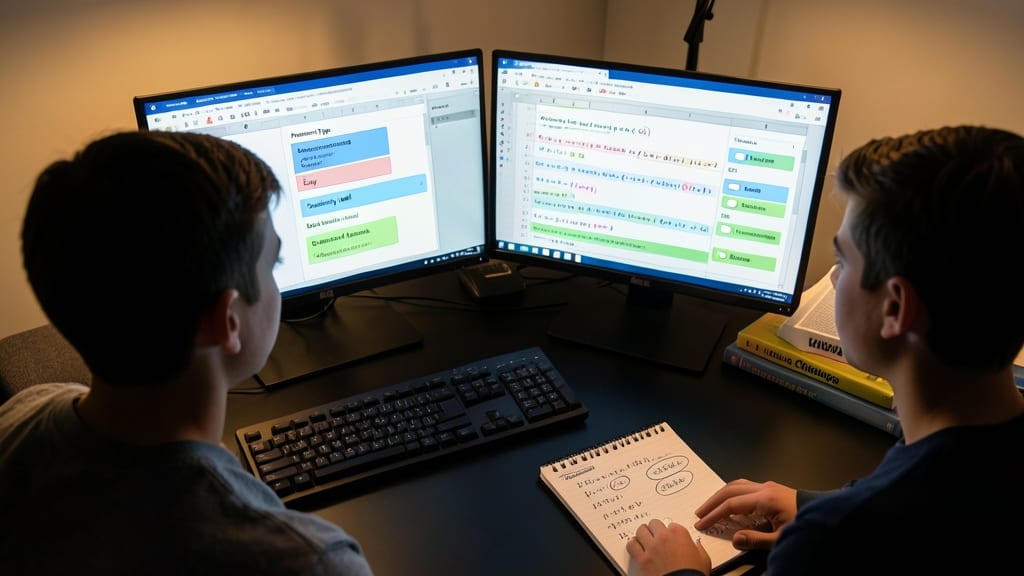
Turn passive math practice into an interactive challenge with an Excel-based problem solver that adapts to your skill level. Instead of static equations, students build dynamic worksheets where dropdown menus let them select problem types, difficulty levels, and even real-world applications (like calculating compound interest or optimizing travel routes).
The magic happens with conditional formatting that highlights correct answers in green and incorrect ones in red, while data validation ensures only valid inputs are accepted. For example, a quadratic equation solver could auto-generate 10 random problems, display step-by-step solutions with VLOOKUP formulas, and even grade itself with a simple =IF statement. This forces students to debug their own logic—just like real-world coding.
Perfect for math clubs, STEM competitions, or students prepping for college-level quantitative courses. The best part? You can export these templates to share with peers, turning homework into a collaborative puzzle. ✨
Virtual Classroom Presentation Using Sway

Tired of static PowerPoint slides that look the same in every classroom? Microsoft Sway transforms presentations into interactive, web-based experiences that adapt to any screen size—perfect for hybrid learning or digital portfolios that stand out.
With zero-configuration design templates, you can embed videos, add interactive polls, and even include live social media feeds. The responsive layout ensures your presentation looks sharp on tablets, phones, or projectors, while the built-in analytics track audience engagement. Plus, sharing a link means no file attachments or compatibility issues. ⚡
This is the go-to tool for students in digital media classes, online courses, or portfolio-building projects—where visual appeal meets seamless accessibility. 🌟
Personal Budget Tracker with Excel PivotTables

Turn financial stress into a learning opportunity with a Personal Budget Tracker built in Excel—where you’ll master PivotTables while gaining real-world money management skills. This project isn’t just about numbers; it’s a hands-on way to understand income, expenses, and savings with dynamic data visualization that updates automatically.
Start by organizing monthly income and expenses in a structured table, then use PivotTables to generate summaries like spending by category or monthly trends. Add conditional formatting to highlight overspending, and create interactive charts (like pie graphs or bar charts) to visualize progress. The best part? You’ll walk away with a tool you can actually use—no more guessing where your money goes!
Perfect for economics classes or personal finance projects, this Excel skillset will impress teachers and future landlords. 💡
Literary Analysis Presentation with Embedded Audio

Bring classic literature to life with a PowerPoint presentation that embeds actual audio clips of book passages—no fancy software required. This project transforms static analysis into an immersive experience where students can highlight themes by playing key scenes directly from their slides.
Start by recording or sourcing MP3 audio clips (even phone recordings work) and insert them using PowerPoint’s audio tools. Pair each clip with visuals like character maps, mood boards, or annotated text excerpts. The narrative flow becomes interactive: press play to hear Hamlet’s soliloquy while analyzing his melancholy, or contrast two narrators’ tones side by side.
Perfect for English classes or book club presentations, this approach proves tech skills while deepening literary engagement. Teachers love the creativity, and students gain confidence presenting multimedia projects. ✨
Group Project Collaboration Workbook in OneNote
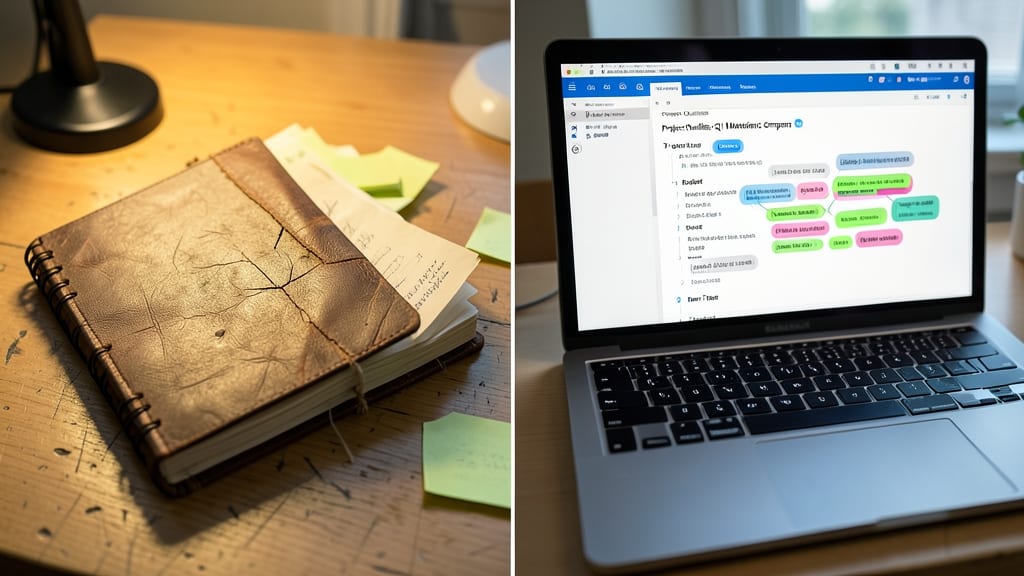
Tired of losing group project notes in a messy binder? OneNote’s digital collaboration workbook replaces physical binders with a searchable, real-time workspace where every team member can contribute—no more chasing down missing assignments or scribbled meeting notes.
Create dedicated sections for research, meeting minutes, and to-do lists, then embed files, images, and even handwritten notes (using a stylus or touchscreen). The built-in task list tracks deadlines, while version history prevents lost work. Best of all, it syncs across devices so your team stays aligned whether working from school or home.
Perfect for science projects, debate research, or art portfolios, this tool teaches digital organization skills that colleges and future employers value. 💻