
Tip & Trick
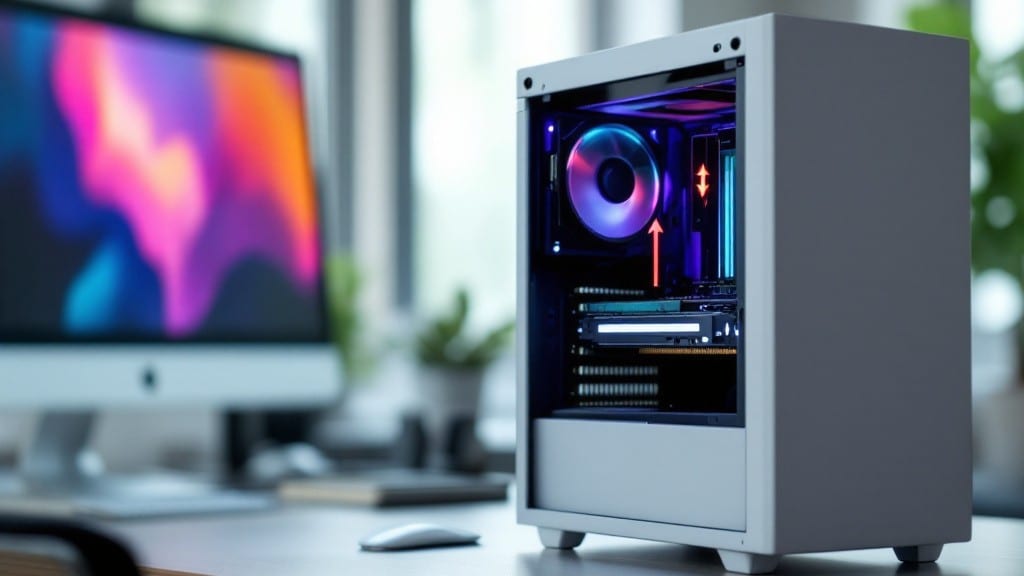
Installing RAM in a desktop PC is easier than you think, especially when you follow the right steps. ✨ I’ve installed RAM in over a hundred machines—from my uncle’s basement workshop in 1998 to modern gaming rigs—and the process hasn’t changed much.
The key is patience and attention to detail, not technical skill.
First, power down your PC and unplug it completely. You’ll need a Phillips-head screwdriver and, if your case is tight, a flashlight to see the RAM slots. Check your motherboard manual to confirm your RAM type (DDR4 or DDR5) matches your PC’s specs—this avoids compatibility headaches later.
Open the case, locate the RAM slots (usually near the CPU), and gently press down on the clips at either end to release them. Align the notch on the RAM stick with the slot’s key—it only fits one way.
Press firmly until the clips snap back into place. If it doesn’t seat properly, don’t force it; reseat it gently.
Power up your PC and enter BIOS (usually by pressing Delete or _F2_ during boot) to confirm the RAM is detected. If not, double-check the installation and try reseating it. Once recognized, your system will run smoother, and you’ll wonder why you didn’t upgrade sooner.
📚 In This Guide
- What you need
- Instructions
- Tips and common mistakes
- Wrapping up and next steps
What you need
- ● RAM module(s): Match your motherboard’s type (e.g., DDR4, DDR5), speed (e.g., 3200MHz, 3600MHz), and capacity (e.g., 8GB, 16GB). Check your motherboard manual for compatibility.
- ○ Screwdriver (optional but helpful): A small Phillips-head screwdriver (usually included with your PC case) to remove any case panels.
- ○ Anti-static wrist strap (optional but recommended): Prevents static electricity from damaging your RAM or motherboard. If you don’t have one, touch the metal part of your case occasionally to ground yourself.
- ○ Flashlight (optional): Helps you see the RAM slots and pins clearly, especially in dimly lit areas.
- ● Powered-off PC: Always unplug the power cable before opening your case. Safety first!
- ● Grounded workspace: Work on a carpeted floor or anti-static mat to avoid static shocks.
- ● Motherboard manual: Keep it handy to reference slot locations and RAM specifications.
Step-by-Step instructions for installing RAM in a desktop PC
Here's the exact process I follow—no guesswork, just clear steps for a smooth upgrade.
🔧 Step 1: Power Down and Prepare Your System
Start by shutting down your PC and unplugging the power supply. I always hold the power button for 5-10 seconds to fully discharge any residual energy—this prevents static shocks that could damage your RAM modules. Lay your case on a clean, flat surface with the side panel off.
Ground yourself by touching the metal chassis before handling components. This ensures you don't build up static electricity that could fry your RAM sticks. Keep the original RAM modules nearby in case you need to reinstall them temporarily.
💻 Step 2: Locate and Remove Existing RAM (If Needed)
Open your case and identify the RAM slots—they're typically long, rectangular slots near the CPU, often colored differently from other connectors. If you're upgrading, gently press the clips on existing RAM modules outward and lift them out at a slight angle. Don't force them; they should release smoothly.
If you're installing new RAM alongside old modules, match their size and type (usually DDR4 or DDR5). For best performance, install identical pairs in slots A2/B2 or 1/3 (check your motherboard manual for exact pairing recommendations).
⌨️ Step 3: Align and Insert the New RAM Modules
Look at the RAM slot—you'll see a small notch on one end. The RAM module has a matching notch that must align perfectly. Insert the module at a 30-degree angle, then press firmly downward until you hear a satisfying click and feel the clips snap into place. This ensures a secure connection.
If the RAM doesn't go in smoothly, you've likely got it oriented wrong. The notches only align one way, so don't force it. For dual-channel setups, install the second module in the paired slot (usually the same color or labeled 2 if the first is 1).
💡 Step 4: Secure and Test the Installation
Once all RAM modules are installed, close your case but leave the side panel off for now. Plug the power supply back in and boot your PC. Watch the motherboard LEDs—they should light up normally. If you see error codes (like beep patterns or LED flashes), power down immediately and reseat the RAM.
Enter your BIOS/UEFI (usually by pressing Del, F2, or F12 during boot) and verify the RAM is detected. Look for the correct total capacity and speed (e.g., 16GB DDR4-3200MHz). If not, check your motherboard manual for XMP/DOCP settings to enable full speed.
⏰ Step 5: Final Verification and Optimization
Install a lightweight benchmark tool like MemTest86 or use Windows' built-in Task Manager to confirm the RAM is running at the correct speed. Run the system for 15-30 minutes under load (e.g., gaming or video editing) to ensure stability. If you experience crashes, reseat the RAM or test one module at a time to isolate the issue.
For long-term performance, enable XMP/DOCP in BIOS to push your RAM to its rated speed (e.g., 3600MHz instead of default 2133MHz). Save changes and reboot. Your system should now run smoother with the extra memory capacity.
Tips & tricks for stress-free RAM installation
Even with clear instructions, a few simple tricks can make your RAM upgrade go smoother than ever.
Static Shock Prevention: I can't stress this enough—static electricity is your RAM's worst enemy. Beyond grounding yourself by touching the metal chassis, consider using an anti-static wrist strap if you're really nervous. I've seen RAM modules fail after installation simply because someone forgot to discharge static. Also, work on a carpeted surface or anti-static mat if possible—this gives any built-up charge a safe path to ground instead of your delicate RAM sticks.
Slot Pairing Strategy: In Step 2, when you're deciding where to install your new RAM, check your motherboard manual for the optimal slots. Most modern boards use a color-coded system where slots 1 and 3 (or A2 and B2) are paired for dual-channel performance. Installing identical RAM modules in these paired slots can give you a noticeable speed boost compared to single-channel setups. If you're unsure, slot 1 alone will work, but pairing gives you the best performance.
The 30-Degree Angle Secret: That 30-degree angle in Step 3 isn't just a random number—it's the perfect balance between precision and force. Too shallow, and you might not get the module seated properly. Too steep, and you risk bending the clips. I recommend practicing with an old RAM stick first if you're new to this. The satisfying "click" you hear when it seats properly is music to my ears—it means you've done it right. If you don't hear that click, stop and check your angle.
LED Error Code Decoder: In Step 4, if you see those dreaded LED flashes or beep patterns, don't panic—your motherboard is trying to tell you something. Most boards have a manual with error code translations. Common issues include unseated RAM (try reseating it), incompatible speed (check your BIOS settings), or even a faulty stick. I've seen single beeps mean everything's fine, while multiple rapid beeps often indicate RAM problems. Always start with the simplest fix—reseating the RAM—before diving into complex troubleshooting.
Pro Tips for Install Ram In A Desktop Pc
- Even with clear instructions, a few simple tricks can make your RAM upgrade go smoother than ever.
- Static Shock Prevention: I can't stress this enough—static electricity is your RAM's worst enemy.
- Slot Pairing Strategy: In Step 2, when you're deciding where to install your new RAM, check your motherboard manual for the optimal slots.
Frequently asked questions
Got questions about upgrading your RAM? You’re not alone! Here are some of the most common concerns—plus quick, no-nonsense answers to keep you on track.
Can I install RAM myself, or should I take it to a repair shop?
Installing RAM is one of the easiest hardware upgrades you can do at home. Most modern RAM modules are designed for a simple click-and-lock process—no soldering or special tools required. Just follow the steps in this guide, and you’ll be done in minutes. If you’re nervous, watch a quick YouTube tutorial first!
Will installing more RAM automatically speed up my PC?
Not always! RAM upgrades help with multitasking (like running games + streaming) or launching memory-heavy apps (e.g., Photoshop, video editing). If your system is already bottlenecked by a slow CPU or storage drive, extra RAM won’t fix that. Check your Task Manager first—if it shows "Memory" near 100% while gaming or working, it’s time for an upgrade!
Do I need to turn off my PC before installing RAM?
Yes! Always power down your PC, unplug the power cable, and press the power button to discharge any residual electricity. Static electricity can damage components, so ground yourself by touching the metal case or use an anti-static wrist strap. Safety first—no shortcuts!
Can I mix RAM kits (e.g., different brands or speeds) in my PC?
Technically yes, but it’s not recommended. Mismatched RAM (e.g., 3200MHz + 2666MHz) will force your PC to run at the slower speed, reducing performance. Stick to the same brand, speed, and type (DDR4/DDR5) for best results. If you’re upgrading, buy a full kit (e.g., 2x8GB instead of 1x8GB + old 4GB) for optimal stability.
What if my PC doesn’t recognize the new RAM after installation?
First, double-check the RAM is seated properly—press down firmly until the clips click. If it’s still not detected, enter your BIOS/UEFI (usually by pressing Del or F2 during boot) to ensure the RAM is enabled. If issues persist, test the RAM in one slot at a time to rule out defects. Most modern motherboards support the new RAM, but check your manual for compatibility.
Wrapping up and next steps
Installing RAM in your desktop PC doesn’t have to be intimidating—with the right tools and a little patience, you’ve just unlocked a stress-free upgrade that’ll boost your system’s performance! 🎉 Whether you’re troubleshooting sluggish speeds or prepping for future tasks, this process is all about confidence and precision.
Now that you’re equipped with the know-how, why not take the next step?
Ready to dive deeper? Check out our guide on optimizing your new RAM or explore other easy hardware upgrades to keep your PC running like a champ. Happy building! 🚀