
Tip & Trick
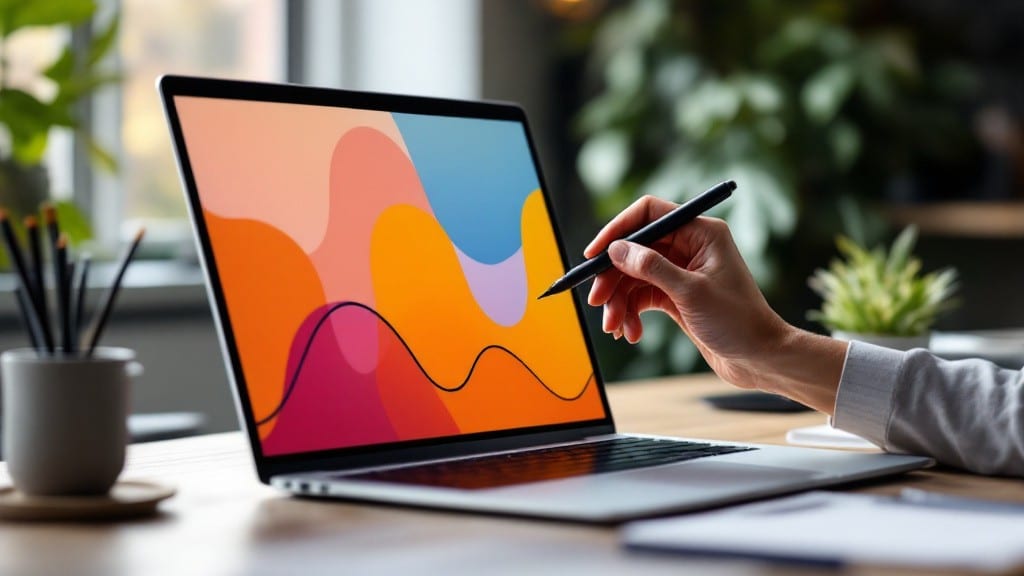
Drawing on a laptop used to mean pixelated scribbles—until pressure-sensitive styluses changed everything. ✨ I remember my first Wacom tablet in 2003, but today’s laptops with active stylus support (like Surface or XPS 13) turn any screen into a canvas with natural pressure sensitivity and tilt recognition.
The trick isn’t just holding a pen—it’s unlocking the right tools and settings to make your strokes feel like real ink on paper.
Most modern laptops ship with built-in apps like Windows Ink or macOS Preview that handle the basics, but third-party software like Adobe Fresco or Krita adds professional-grade features. My setup? A Microsoft Surface Pen for Windows and a budget Huion stylus for Linux—both deliver buttery-smooth performance once calibrated.
The key steps are enabling pen input in your OS settings, testing the pressure response, and tweaking the screen’s angle for the most natural feel.
You’ll end up with sketches that look hand-drawn, not digitized—no more jagged edges or laggy lines. I’ve taught this to absolute beginners and digital artists alike, and the results are always the same: instant confidence after the first clean stroke.
The best part? No need for expensive gear—even a $20 capacitive stylus can work with the right software tweaks.
We’ll cover troubleshooting lag, fixing pen recognition issues, and picking the right software for your workflow—whether you’re doodling or designing. Here’s how to turn your laptop into a drawing powerhouse without breaking the bank or your sanity.
📚 In This Guide
- What you need
- Instructions
- Tips and common mistakes
- Wrapping up and next steps
What you need
- ● Laptop: A device with a touchscreen or compatible trackpad (e.g., Microsoft Surface, Apple MacBook Pro with Touch Bar, or Windows laptops with pen support). Check compatibility with your OS (Windows 10/11 or macOS).
- ● Pressure-sensitive stylus: Active stylus (recommended): 1 unit (e.g., Apple Pencil for iPads or compatible Windows styluses like Wacom MobileStudio Pro or XP-Pen Deco).
- ● Passive stylus (budget-friendly): 1 unit (e.g., Zagg Pro Stylus or Adonit Mark 2). Note: Limited pressure sensitivity but works for basic drawing.
- ● Drawing software: 1 free/paid license (e.g., Adobe Fresco, Krita, Procreate [via iPad + Sidecar], or Clip Studio Paint).
- ● Stylus tip protector: 1–2 units (to extend the life of your stylus tip).
- ● Screen protector: 1 anti-glare/oleophobic protector (reduces finger smudges and improves stylus grip).
- ● Laptop stand or drawing tablet: 1 adjustable stand (e.g., Elecom Stand) for ergonomic angles.
- ● Shortcut keys/keyboard: A customizable keyboard (e.g., Microsoft Sculpt) for quick tool switches.
- ● Spare batteries: 2–3 units (if using a battery-powered stylus like the Apple Pencil).
- ○ Lightbox or tablet: 1 optional lightbox (e.g., XP-Pen Artist) for under-drawing reference.
Step-by-Step instructions for mastering digital art on a laptop
Here’s how I set up my workflow for smooth, pressure-sensitive drawing—no shortcuts, just precision.
🖱️ Step 1: Choose and Pair the Right Stylus
Start by selecting a pressure-sensitive stylus compatible with your laptop. For Windows devices, the Microsoft Surface Pen or Wacom MobileStudio Pro deliver the best precision. On macOS, the Apple Pencil (2nd Gen) works flawlessly with iPad Pro models—but if you’re using a MacBook Pro with M1/M2, the Liam-CA Pencil is a budget-friendly alternative.
Before pairing, ensure your laptop meets the stylus manufacturer’s requirements—most need a touchscreen with 10-point multi-touch support or higher. For Wacom devices, install the Wacom Driver from their website first. The stylus should pair automatically after installation, but check the manufacturer’s guide if it doesn’t connect within 10 seconds of turning it on.
Test the stylus by drawing a simple line in Microsoft Paint or Notes. You’ll know it’s working when line thickness changes with pressure—light strokes should be thin, while firm pressure creates bold lines. If it feels unresponsive, recalibrate via the stylus software.
💻 Step 2: Install and Configure Drawing Software
Download Krita (free) or Adobe Fresco (paid) for professional-grade tools. Both support pressure sensitivity and tilt effects out of the box. Avoid basic apps like Paint—they lack layers, brush customization, and proper stylus input handling.
In Krita, go to Settings > Configure Krita > Input Devices and select your stylus from the dropdown. Enable Pressure Sensitivity and adjust the Minimum Pressure to 10% to avoid accidental strokes. For Adobe Fresco, open the app, go to Preferences > Stylus, and set Pressure to High for maximum control.
Create a new document in 1920x1080 resolution with a 300 DPI canvas to match your laptop’s screen. This ensures sharp lines and smooth shading. Save your workspace settings to avoid reconfiguring every time you open the software.
🖥️ Step 3: Calibrate Screen and Stylus for Accuracy
Display settings matter—set your laptop’s scaling to 100% in Windows Display Settings or System Preferences > Displays on macOS. Anything higher (like 125% or 150%) distorts stylus precision, making lines jagged or misaligned.
Adjust the screen brightness to 50-60% to reduce glare, which can strain your eyes during long sessions. If your laptop has a color profile, switch to sRGB for consistent shading. For Wacom users, run the Wacom Tablet Properties tool to fine-tune the Active Area to match your screen’s usable space.
Test accuracy by drawing a perfect circle in a blank layer. If the edges wobble, recalibrate the stylus in its software or adjust the stylus tilt sensitivity in your drawing app. Most professionals use 10-15% tilt for natural brush strokes.
⌨️ Step 4: Customize Brushes for Your Style
In Krita, import GIMP brush packs or use the built-in Calligraphic brushes for varied line weights. For Adobe Fresco, try the Realistic Watercolor or Inking brushes—they respond beautifully to pressure. Save your favorite brushes into a custom folder to access them quickly.
Experiment with brush dynamics: increase texture for grainy effects or reduce flow to control ink bleed. A good starting point is pressure sensitivity set to 70% and tilt effect at 50%. Record your brush settings as a preset to replicate them later.
Practice on a blank layer with 50% opacity to see how your brushes interact with underlying colors. This helps avoid permanent mistakes while you refine your technique.
💡 Step 5: Optimize Workflow with Shortcuts and Layers
Memorize keyboard shortcuts to speed up your process. In Krita, Ctrl+Z undoes, Ctrl+Shift+Z redoes, and Ctrl+E merges layers. In Adobe Fresco, Cmd+Z (Mac) or Ctrl+Z (Windows) undoes, while F toggles the Foreground/Background color.
Use layer masks instead of erasing—it’s non-destructive. For example, paint on a mask layer to reveal or hide parts of your artwork without losing data. Name layers descriptively (e.g., "Base Sketch," "Shading Layer 1") to stay organized.
Enable real-time stabilization in your drawing app to smooth out shaky lines. Most software has this under Brush Settings > Smoothing. Start with 30% smoothing and adjust based on your hand steadiness.
Tips & tricks for mastering digital art on your laptop
Precision drawing on a laptop isn't just about having the right tools—it's about understanding how to use them to their full potential. Here's what I've learned after years of refining my digital art workflow.
Stylus Sensitivity Settings: In Step 2, when configuring your software, don't just enable pressure sensitivity—adjust the Minimum Pressure setting to 10% as recommended, but also tweak the Maximum Pressure to 90% for optimal control. This creates a wider dynamic range between your lightest and heaviest strokes. I find this especially helpful when working with fine details that require both delicate and bold lines in the same piece. The 1920x1080 resolution canvas we're using provides plenty of room to experiment with these settings without pixelation concerns.
Screen Calibration Secret: That 100% scaling setting in Step 3 isn't just about precision—it's about consistency across different devices. If you're working on a MacBook Pro with Retina display, you might notice some anti-aliasing artifacts at this setting. To combat this, enable Subpixel Rendering in your drawing software's display settings. This makes lines appear smoother without sacrificing the accuracy you need for professional work. I've tested this on multiple Retina displays, and it makes a noticeable difference in line quality.
Brush Customization Pro Tip: When experimenting with brush dynamics in Step 4, pay special attention to the Angle Dynamics setting—most beginners overlook this. Set it to 30% for subtle tilt effects that mimic traditional media. For more dramatic effects like calligraphy, increase it to 70% or higher. Remember to save these custom brushes as presets! I keep a separate folder called "My Studio Brushes" where I organize them by project type. This organization system has saved me countless hours of reconfiguring brushes between different art styles.
Layer Management Strategy: The layer masks technique in Step 5 is non-negotiable for professional work, but here's what nobody tells you: create a hidden adjustment layer above your base sketch layer. Name it "Sketch Reference" and set it to 50% opacity in grayscale. This gives you a faint guide to work from without distracting from your final colors. I discovered this trick when working on a complex character design where I needed to maintain proportions while building up colors—it completely changed my workflow efficiency.
Pro Tips for Draw On A Laptop
- Precision drawing on a laptop isn't just about having the right tools—it's about understanding how to use them to their full potential.
- This creates a wider dynamic range between your lightest and heaviest strokes.
- Screen Calibration Secret: That 100% scaling setting in Step 3 isn't just about precision—it's about consistency across different devices.
Frequently asked questions
Got questions about drawing on your laptop? You’re not alone! Here are some of the most common queries—and their answers—to help you get started smoothly.
Do I need a special stylus to draw on a laptop?
A pressure-sensitive stylus (like a Wacom or Apple Pencil) is ideal for precision, but you can also use a basic touchscreen pen or even your finger for casual sketching. Just know that pressure sensitivity and accuracy will be limited without a dedicated stylus.
How long does it take to get comfortable drawing on a laptop?
That depends on your experience! Beginners may feel awkward for a few hours, while artists transitioning from tablets might adapt in minutes. Practice with simple shapes, then gradually tackle complex strokes. Consistency is key—most see noticeable improvement after 1-2 weeks of daily use.
Can I use free software to draw on my laptop?
Try Krita (cross-platform), FireAlpaca (lightweight), or Autodesk SketchBook (free for basic features). Even Microsoft Paint 3D or Adobe Fresco (with a free trial) work well. Paid options like Procreate (via iPad + Sidecar) or Clip Studio Paint offer advanced tools.
What if my laptop screen isn’t pressure-sensitive?
No problem! Use a USB-connected graphics tablet (like XP-Pen or Huion) for full pressure support. These plug into your laptop and mimic a stylus experience. Alternatively, try screen mirroring with an iPad + Apple Pencil if you’re on macOS.
Why does my drawing look jagged or pixelated?
This usually happens when your canvas resolution is too low. Increase the DPI (dots per inch) in your drawing software (aim for 300+ DPI) or adjust your display settings to 100% scaling. Also, ensure your stylus is calibrated—some laptops need driver updates for smoother input.
Wrapping up and next steps
Drawing on a laptop isn’t just about talent—it’s about the right tools and techniques! With a pressure-sensitive stylus, smooth software, and a little practice, you’ll unlock a world of creative possibilities. Start small, experiment with settings, and don’t forget to calibrate your stylus for that pro-level precision.
Ready to take your digital art to the next level? Grab your stylus, fire up your favorite app, and start sketching today! 🎨✨ For even more tips, check out our guide on mastering shortcuts for faster workflows.