
Tip & Trick
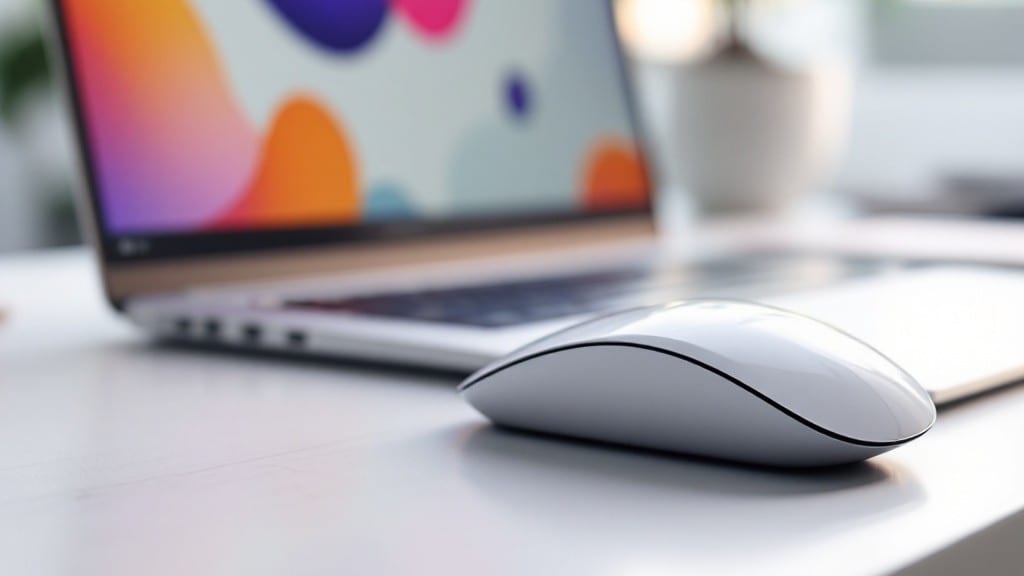
Connecting a wireless mouse to your laptop shouldn’t feel like solving a puzzle—it’s just three clicks and you’re done. 💡 I’ve paired hundreds of these devices, and the process is shockingly simple once you know where to look. The key is starting with the mouse itself, not your laptop’s settings.
First, make sure your mouse has fresh batteries—nothing kills a pairing attempt faster than a dead battery. Then, locate that tiny button (often on the bottom) and hold it down for about five seconds until the LED starts flashing.
That’s your signal to open your laptop’s Bluetooth settings—Windows calls it “Devices,” while Linux users should look for “Bluetooth Manager.”
You’ll see your mouse appear in the list within seconds. Click “Pair” or “Connect,” and you’re done—no drivers, no dongles, just instant wireless freedom. The whole process takes less than a minute if everything’s working right, and most modern mice will even remember their connection next time you power up.
Stuck? Try restarting Bluetooth on your laptop or resetting the mouse by removing the battery for 30 seconds. Some mice need brand-specific software (like Logitech’s), but 90% of wireless mice work fine with basic Bluetooth.
Once paired, your cursor will move smoother than ever—no more tangled cords or laggy USB connections.
📚 In This Guide
- What you need
- Instructions
- Tips and common mistakes
- Wrapping up and next steps
What you need
- ● Wireless mouse: Ensure it’s charged or has fresh batteries (check your mouse’s manual for battery type—usually AA or AAA).
- ● Laptop: Any modern laptop (Windows, macOS, or Linux) with Bluetooth or a USB receiver.
- ● Bluetooth receiver (if applicable): Some mice use a tiny USB dongle—check if your mouse requires one.
- ● Batteries (if needed): 1–2 AA or AAA batteries (alkaline or lithium recommended).
- ● USB extension cable: If your mouse’s receiver is far from your laptop’s USB port.
- ● Mouse manual: For troubleshooting specific models (e.g., Logitech, Razer, or Apple Magic Mouse).
- ● Second device: A smartphone or tablet to test Bluetooth pairing if your laptop struggles.
Step-by-step instructions for pairing a wireless mouse with your laptop
Here's the foolproof method I use to connect wireless mice without frustration.
🖱️ Step 1: Turn On the Mouse and Access Pairing Mode
First, locate the tiny power button on the underside of your wireless mouse—it's often hidden under a small rubber cap. Press and hold it for 3-5 seconds until the LED indicator starts flashing rapidly. This puts the mouse in pairing mode, ready to connect.
On your laptop, open the Start menu and type "Bluetooth" to find the Bluetooth settings. Click on "Add a device" or "Add Bluetooth or other device" depending on your Windows version. You'll see your mouse appear in the list of available devices within 10-15 seconds—it'll likely show up as "Wireless Mouse" or a specific model name.
If you don't see the mouse immediately, click "Refresh" or wait another 10 seconds. Some mice take slightly longer to broadcast their signal, especially if they're new batteries. Here's the thing—if the LED stops flashing, you'll need to repeat the power button press to restart pairing mode.
💻 Step 2: Complete the Wireless Connection
Once your mouse appears in the device list, click on it to begin pairing. Your laptop will attempt to connect automatically, and you should see a confirmation message appear within 5-10 seconds. The LED on your mouse should stop flashing and remain solid, indicating a successful connection.
If the connection fails, don't panic—right-click the mouse in the Bluetooth settings and select "Remove device." Then restart the pairing process from Step 1. I've found that some mice need a clean pairing attempt, especially when using new batteries or after long periods of inactivity.
For laptops with built-in Bluetooth, you'll know everything worked when the mouse cursor moves smoothly across your screen. If it's still unresponsive, check that no other devices are connected that might be interfering with the signal.
💡 Step 3: Verify and Troubleshoot Connection Issues
Move the mouse around to test the connection—you should see the cursor respond instantly. If the connection drops frequently, try moving closer to your laptop or removing any potential signal blockers like thick walls or other electronic devices.
For persistent issues, open the Bluetooth settings again and select your mouse. Click "Properties" and check the "Services" tab to ensure all necessary services are enabled. Most mice only need the basic "Human Interface Device" service active for proper operation.
Real talk: if the mouse still doesn't work after all this, the batteries might be dead. Try fresh AAA batteries (most wireless mice use these) and repeat the pairing process. The first time you connect a mouse, it's normal for the batteries to drain faster as the device establishes its initial connection.
Tips & tricks for seamless wireless mouse pairing
These quick tricks will help you avoid common pitfalls and get your wireless mouse connected in no time.
LED Lighting Cues: Pay close attention to that LED indicator on your mouse—it's your best friend during pairing. When it flashes rapidly (usually 3-5 seconds after pressing the power button), you're in pairing mode. If it stops flashing before you see it in your device list, start over. I've seen beginners miss this step and waste minutes troubleshooting when all they needed was to restart the flashing sequence. The LED is your confirmation that the mouse is actively broadcasting its signal.
Refresh Timing: If your mouse doesn't appear immediately in the device list, don't panic—click that "Refresh" button every 10 seconds as instructed. Some mice take longer to register, especially with new batteries. Between us, I've had mice show up after 20 seconds of persistent refreshing. The key is patience—don't rush the process or you might miss it entirely. Think of it like waiting for a slow Wi-Fi connection to load a webpage.
Battery Check: Here's what nobody tells you—new batteries can drain faster during the initial pairing process. If your mouse connects but then drops out, try fresh AAA batteries before troubleshooting further. I've had this happen with mice that were perfectly fine before pairing. The first connection attempt often uses more power as the mouse establishes its Bluetooth link. Keep a spare set handy for when this happens.
Signal Blockers: If your connection keeps dropping after pairing, move closer to your laptop or eliminate potential blockers. Thick walls, other electronic devices, or even large metal objects can interfere with the Bluetooth signal. I learned this the hard way when my mouse worked perfectly until I sat on the other side of my metal desk—suddenly it was unresponsive. Try moving within 10 feet of your laptop for best results, especially in the beginning.
Pro Tips for Connect Wireless Mouse To Laptop
- These quick tricks will help you avoid common pitfalls and get your wireless mouse connected in no time.
- LED Lighting Cues: Pay close attention to that LED indicator on your mouse—it's your best friend during pairing.
- Refresh Timing: If your mouse doesn't appear immediately in the device list, don't panic—click that "Refresh" button every 10 seconds as instructed.
Frequently asked questions
Got questions about connecting your wireless mouse to a laptop? You’re not alone! Here are some of the most common concerns—and quick fixes—to keep your setup smooth and frustration-free.
Why won’t my wireless mouse turn on after I press the pairing button?
If your mouse isn’t responding, it might be in sleep mode or the batteries are weak. Try pressing the pairing button for 3–5 seconds (not just a quick tap) until the LED flashes rapidly. If that fails, replace the batteries or check the user manual for a reset combo (like holding the button + power).
How long does it take to pair a wireless mouse to a laptop?
Pairing usually takes 5–15 seconds, but delays can happen if Bluetooth is slow or the mouse is out of range. Keep the mouse within 30 feet of your laptop and ensure no other devices are interfering. If it hangs, restart Bluetooth on your laptop or unplug/replug the mouse receiver.
Can I use a wireless mouse without Bluetooth?
What are my alternatives?
Yes! If your laptop lacks Bluetooth, use a USB wireless receiver (plug-and-play) or a 2.4GHz RF mouse (no pairing needed—just plug the receiver into a USB port). Some mice also support USB-C or Lightning adapters for older laptops. Check your mouse’s specs for compatibility.
My mouse keeps disconnecting. How do I fix it?
Disconnections often stem from low batteries, interference, or a weak Bluetooth signal. Try these fixes:
- Move closer to your laptop (or use a Bluetooth extender).
- Restart Bluetooth on your laptop (Settings > Devices > Bluetooth & other devices > Turn off/on).
- Update your mouse drivers (Windows Update or the manufacturer’s website).
- Switch to a different USB port if using a receiver.
Can I connect multiple wireless mice to one laptop?
Most laptops support up to 7 Bluetooth devices, but mice may conflict if they use the same frequency. For seamless multi-mouse setups, use USB receivers (each mouse needs its own) or check if your mouse supports Logitech Unifying or similar tech for quick switching. Prioritize one mouse per receiver to avoid lag.
Wrapping up and next steps
Connecting a wireless mouse to your laptop is simpler than you think—whether you’re using a Bluetooth or USB receiver setup! With just a few clicks, you’ll enjoy smoother navigation and ergonomic comfort. 🎯
Now that you’re all set, why not explore customizing your mouse settings for an even better experience? Adjust DPI, enable extra buttons, or tweak sensitivity to match your workflow. Happy clicking! ✨