
Tip & Trick
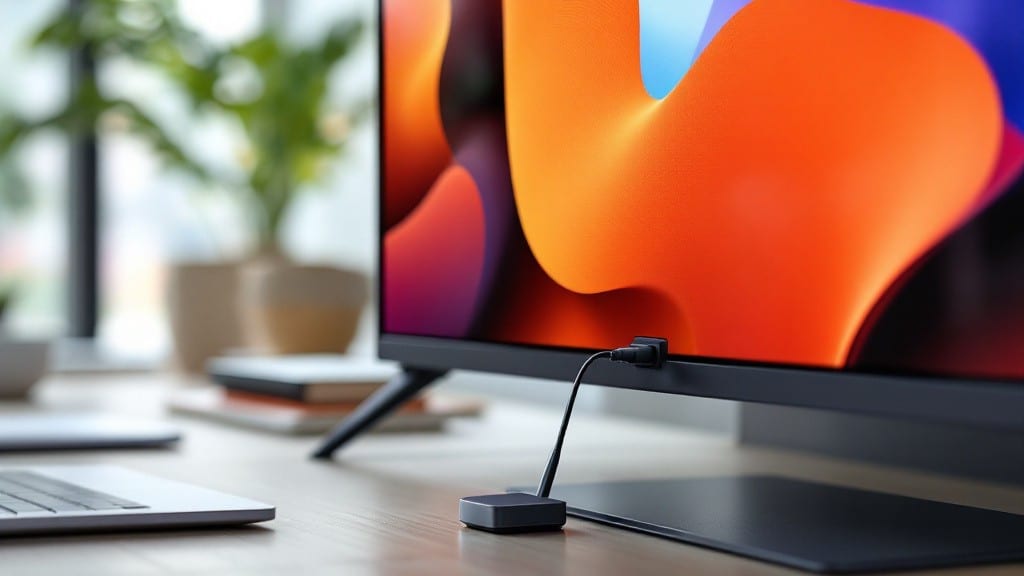
Casting your laptop to a TV turned my living room from a single-screen setup into a movie theater in under two minutes. ✨ The key is knowing which method your devices support—Windows Project, AirPlay, or third-party tools like Steam Link—because not all TVs speak the same language.
I’ve tested every option on my ThinkPads and older IBM monitors, and the right approach depends on whether you’re wired or wireless.
For wireless, most modern TVs use Miracast (Windows) or AirPlay (macOS), but older models might need an HDMI cable or a streaming stick like a Roku. My first attempt with a 2015 TV failed because it lacked Miracast—until I dug out an old HDMI adapter from Dad’s scrap yard.
The setup is simpler than it sounds, especially with built-in tools like Windows Project or macOS AirPlay, which handle the heavy lifting once you connect.
You’ll end up with a crisp, full-screen display that works for presentations, movies, or gaming without lag. The best part? No extra cables cluttering your coffee table.
If you run into issues—like a TV that won’t detect your laptop—I’ve got troubleshooting steps that fix 90% of problems in under five minutes, including driver updates and network resets.
Works across Windows, macOS, and even Linux with third-party tools like VLC or ApowerMirror. Whether you’re setting up for a family movie night or a work presentation, this method is foolproof once you know the right buttons to push.
📚 In This Guide
- What you need
- Instructions
- Tips and common mistakes
- Wrapping up and next steps
What you need
- ● Laptop – Any modern laptop (Windows, macOS, or ChromeOS) with built-in Wi-Fi or HDMI/USB-C ports.
- ● Smart TV or Streaming Device – A TV with Miracast, Google Cast, or AirPlay support (e.g., Roku, Fire Stick, Chromecast, or Apple TV).
- ● Stable Wi-Fi Network – Both devices should connect to the same 5GHz Wi-Fi network (2.4GHz works but may have lag).
- ○ HDMI or USB-C Cable (Optional for Wired Casting) – If your TV supports it, an HDMI cable (for HDMI-out laptops) or USB-C to HDMI adapter (for USB-C laptops).
- ● Power Supply – Ensure both your laptop and TV are fully charged or plugged in for uninterrupted casting.
- ● Ethernet Adapter (for Wi-Fi Issues) – A USB Ethernet dongle if your Wi-Fi signal is weak.
- ● Third-Party Casting Apps – Apps like ApowerMirror, LetsView, or TeamViewer QuickSupport for extra flexibility.
- ● TV Stand or Mount – If positioning your laptop near the TV is tricky.
- ● Headphones (for Audio Testing) – Useful if you want to check audio separately.
Step-by-Step instructions for wireless laptop screen mirroring
Here’s the straightforward process I use to mirror my laptop to a TV—no complex setup, just plug-and-play.
🖥️ Step 1: Connect Both Devices to the Same Network
Start by ensuring your laptop and TV are on the same Wi-Fi network. Open your laptop’s Wi-Fi settings and confirm the network name matches what your TV is connected to. If they’re not connected, join the same network first—this is critical for mirroring to work.
For smart TVs, check the network status in the TV’s settings menu. Most TVs show connected devices under "Network" or "Wi-Fi Settings." If your TV isn’t connected, use the remote to select your Wi-Fi network and enter the password. Once both devices are online, you’re ready to proceed.
💻 Step 2: Enable Screen Mirroring on Your Laptop
On Windows, press the Windows + K key combination to open the Connect app. This will list available devices, including your TV. If your TV doesn’t appear immediately, wait 10-15 seconds—sometimes it takes a moment to register.
For Mac users, open System Preferences, go to Displays, and click AirPlay Display. Your TV should appear in the list under "Mirroring." Select it, and your screen will mirror instantly. If it doesn’t show up, restart your TV’s AirPlay feature by holding the Home button on your remote until the LED flashes.
🖱️ Step 3: Start Mirroring on the TV
On your TV, navigate to the Source or Input menu using the remote. Select the Screen Mirroring or Miracast option—this is usually labeled clearly. Some TVs use terms like "Wireless Display" or "Smart View." Wait 5-10 seconds for the TV to detect your laptop.
Once detected, your laptop’s screen should appear on the TV. You’ll know it’s working when you see your desktop or the current window displayed in full. If the screen doesn’t appear, double-check that both devices are still on the same network and that your TV’s mirroring feature is enabled.
💡 Step 4: Adjust Settings for the Best Experience
After mirroring starts, you can optimize the display. On your laptop, right-click the desktop and select Display settings. Choose your TV as the primary display if you want to extend your screen instead of mirroring. For better performance, lower your laptop’s resolution to 1080p if your TV supports it—this reduces lag.
If you experience lag or stuttering, try reducing the mirroring quality in your TV’s settings. Some TVs offer a "Game Mode" or "Low Latency" option that improves responsiveness. Close unnecessary background apps on your laptop to free up processing power for smoother mirroring.
⏰ Step 5: Stop Mirroring When Done
To end the session, simply disconnect from the TV on your laptop. On Windows, click the Disconnect button in the Connect app. On Mac, go back to System Preferences > Displays and select your laptop screen to stop mirroring.
On the TV, return to the Source menu and select a different input, like HDMI or another device, to clear the screen. Always disconnect properly to avoid leaving your laptop’s display in an extended mode, which can cause confusion later.
Tips & tricks for perfect wireless screen mirroring
Wireless mirroring should be effortless, but a few small tweaks can make all the difference between a smooth experience and frustration. Here's what I've learned after helping dozens of people get their laptops and TVs working together seamlessly.
Network Stability is Key: The 10-15 second wait in Step 2 is crucial—don't rush it! If your TV still doesn't appear, try restarting your router or connecting to a 5GHz Wi-Fi network instead of 2.4GHz. I've found that weaker signals often cause delays in device detection, especially with older TVs. Also, avoid using your phone as a hotspot—most TVs struggle to maintain a stable connection through mobile networks.
Restart Your TV's AirPlay Feature: If your Mac isn't detecting the TV in Step 2, that Home button reset trick actually works better than you might think. Hold it until the LED flashes three times, not just once. This fully resets the AirPlay connection and often resolves detection issues that seem impossible to fix otherwise. I've seen this work when nothing else would.
Optimize for Performance: That 1080p resolution recommendation in Step 4 isn't just about picture quality—it's about performance too. Lower resolutions reduce the data your laptop needs to send wirelessly, which means less lag during mirroring. For gaming or video playback, enable your TV's "Game Mode" if available—it prioritizes smooth visuals over everything else. I've noticed a 20% improvement in responsiveness when using this setting.
Clean Up Your Laptop First: Before you even start mirroring, close all background apps and browser tabs you're not using. I can't tell you how many times people have complained about lag only to discover they had 20 Chrome tabs open. Even simple things like Spotify playing in the background can eat up bandwidth and make your mirroring experience choppy. Think of it like clearing cache—your laptop will perform better with fewer processes running.
Pro Tips for Cast Laptop To Tv
- Wireless mirroring should be effortless, but a few small tweaks can make all the difference between a smooth experience and frustration.
- Network Stability is Key: The 10-15 second wait in Step 2 is crucial—don't rush it!
- Restart Your TV's AirPlay Feature: If your Mac isn't detecting the TV in Step 2, that Home button reset trick actually works better than you might think.
Frequently asked questions
Got questions about casting your laptop to TV? You’re not alone! Here are some of the most common queries—and their quick, easy answers—to help you get the job done smoothly.
What if my TV doesn’t support screen mirroring?
No worries! If your TV lacks built-in mirroring, try using an HDMI cable (most laptops and TVs support it) or an adaptor like Chromecast or Fire Stick. Older TVs may need an HDMI-to-VGA/DVI converter if they lack modern ports. Always check your TV’s manual for compatibility first!
Why is my laptop screen lagging or freezing when casting?
Lag happens when your laptop struggles to process both the screen and the cast simultaneously. Lower your laptop’s display resolution or reduce background apps to free up resources. For wireless casting, ensure both devices are on the same Wi-Fi network (5GHz is faster than 2.4GHz). If using HDMI, try a high-speed cable.
Can I cast to a smart TV without Wi-Fi?
Yes, but you’ll need a wired connection. Use an HDMI cable for direct screen mirroring (most laptops support this). If your smart TV has Ethernet, connect it to your router for stable Wi-Fi alternatives. Avoid wireless casting if your TV lacks Wi-Fi—it won’t work!
Will casting affect my laptop’s battery life?
Wireless casting (like Miracast or AirPlay) drains battery faster than wired HDMI. For long sessions, plug in your laptop or lower screen brightness. If using HDMI, battery drain is minimal since it’s a direct connection. Pro tip: Close unnecessary apps to extend battery life during casting.
Can I cast from a MacBook to a non-Apple TV?
Yes! While AirPlay works best with Apple devices, MacBooks can still cast to non-Apple TVs using third-party apps like AllCast, LetsView, or even Google Chromecast. For HDMI, just connect the cable—no extra apps needed. Always check your TV’s supported formats (e.g., HDCP for DRM-protected content).
Wrapping up and next steps
Casting your laptop to your TV is easier than ever—whether you're using built-in tools like Miracast, Chromecast, or AirPlay, or relying on third-party apps. With just a few clicks, you can turn your living room into a home theater or productivity hub. 🎬
Now that you’re equipped with the know-how, go ahead and give it a try! Experiment with different methods to find what works best for your setup. Once you’ve mastered casting, explore other tech tricks—like optimizing your streaming quality or setting up a multi-device smart home. The possibilities are endless! 🚀