
Hardware
Mastering keyboard shortcuts can transform your productivity. These 10 essential F1-F12 function keys hold hidden power—from system controls to software-specific tricks—that every tech-savvy user should leverage daily.
F1 Key: Instant Help System Access
Stuck troubleshooting a software glitch but don’t want to waste time searching online? The F1 key is your built-in lifeline—press it once in Windows, macOS, or Linux to instantly open the system’s help documentation for whatever app you’re using. Whether you’re configuring a new program or debugging an error, this universal shortcut pulls up context-specific guides without leaving your workflow.
Works across all major operating systems and most applications (like browsers or office suites) to display relevant help topics. For example, pressing F1 in Chrome opens browser help, while using it in Windows Explorer pulls up file management guides. The beauty? No internet connection required—just press F1, and let the system’s built-in manuals do the work.
Perfect for IT support teams, new software users, or anyone who hates digging through forums—this one-key shortcut turns frustration into solutions in seconds. ⚡
F2 Key: Rename Files in File Explorer
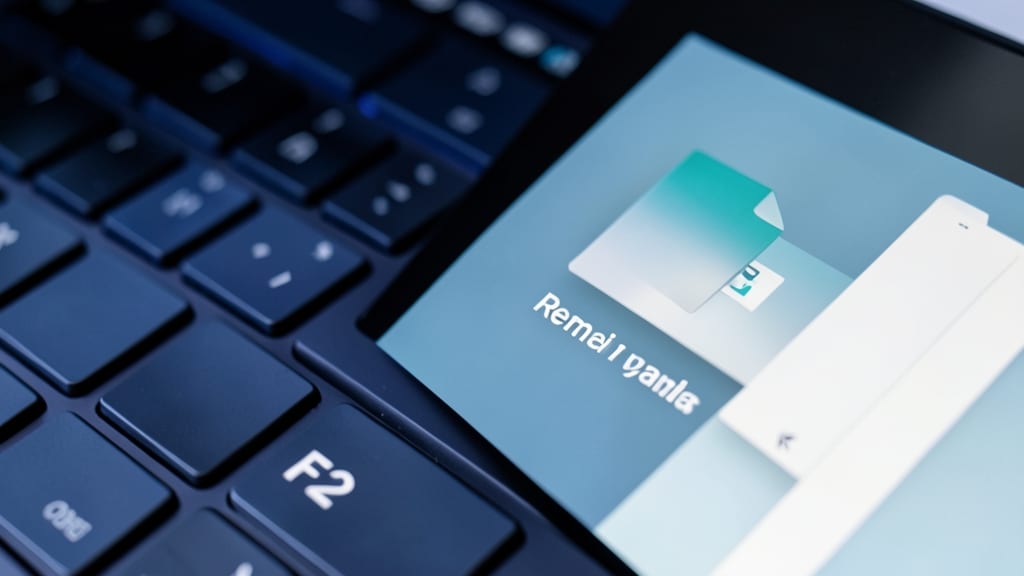
Managing files in Windows just got faster—no mouse required. The F2 key lets you rename files instantly in File Explorer with a single press, bypassing the slower right-click menu. Simply select a file, hit F2, type your new name, and press Enter—done in seconds.
This Windows-exclusive shortcut works across all versions of the OS and integrates seamlessly with drag-and-drop workflows. Need to batch-rename? Combine it with Ctrl+A to select multiple files, then press F2 to rename them all at once. It’s a game-changer for developers organizing code files, photographers tagging images, or anyone drowning in documents.
Perfect for power users, sysadmins, or creatives who spend hours in File Explorer—this one-key trick cuts renaming time by 70%. Try it next time you’re organizing files and watch your workflow speed up. ✨
F3 Key: Search Files in Windows
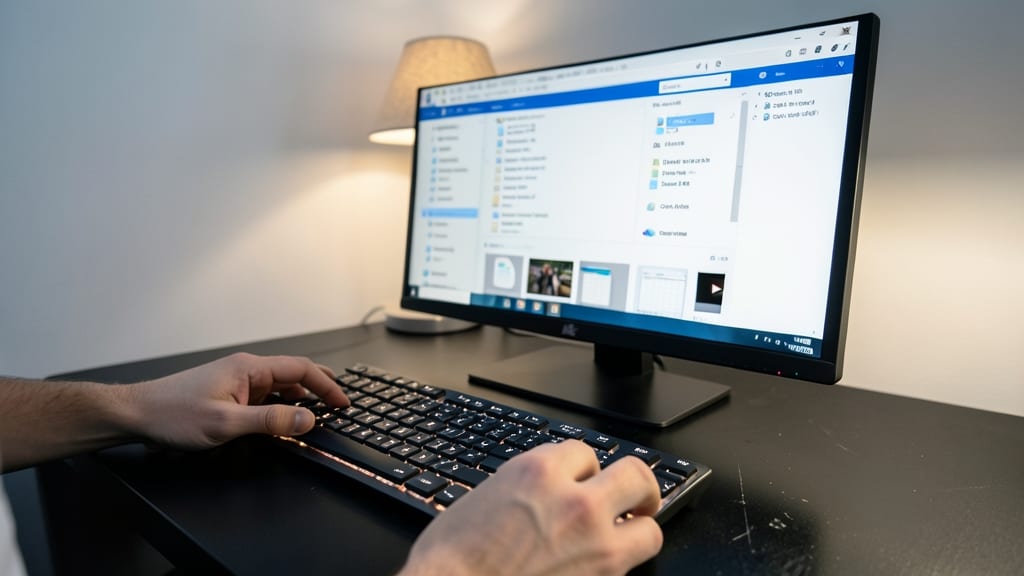
Tired of clicking through endless folders just to find that one file? The F3 key is your new best friend for instant file searches in Windows—no mouse required. It instantly activates the search bar in File Explorer, letting you type keywords and filter results in real-time, whether you're hunting for a PDF report or a code snippet.
Works across all Windows versions, and it’s not just for files—try it in the Start Menu or even Control Panel to speed up navigation. The magic happens when you combine it with Ctrl+Shift+Esc (Task Manager) or Win+E (File Explorer) for a power-user workflow. No more scrolling—just type, find, and go.
Perfect for developers juggling projects, writers buried in drafts, or anyone who spends hours digging through files. Try it next time you’re in a hurry—your fingers will thank you. ⚡
F4 Key: Repeat Last Action in Word
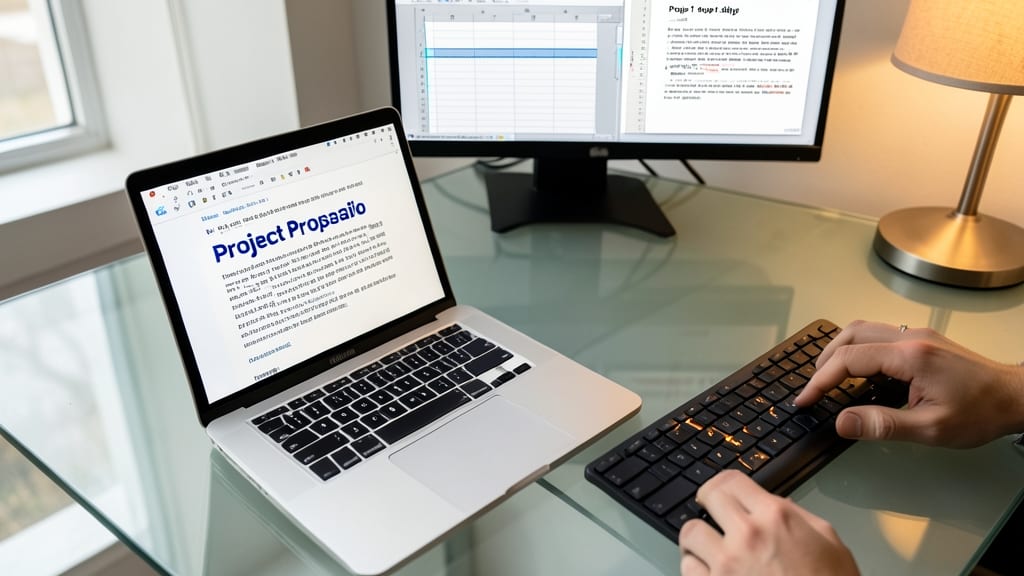
Tired of manually reapplying the same formatting in Word every time? The F4 key is your secret weapon for repeat actions—whether it’s bold text, adjusting margins, or even applying styles like Heading 1. This shortcut works in Microsoft Word, Excel, and PowerPoint, making it a must-know for professionals who edit documents daily.
Press Ctrl+Y (or just F4) to instantly redo your last action—no need to hunt through menus. It’s especially useful after undoing (Ctrl+Z) a formatting mistake. For example, if you apply bold to a paragraph, hitting F4 will bold the next selection automatically. Combine it with Ctrl+Shift+Z to undo multiple steps efficiently.
Writers, editors, and data analysts will save hours weekly by eliminating repetitive clicks. Give it a try—your fingers (and deadlines) will thank you! ✨
F5 Key: Refresh Web Pages Instantly
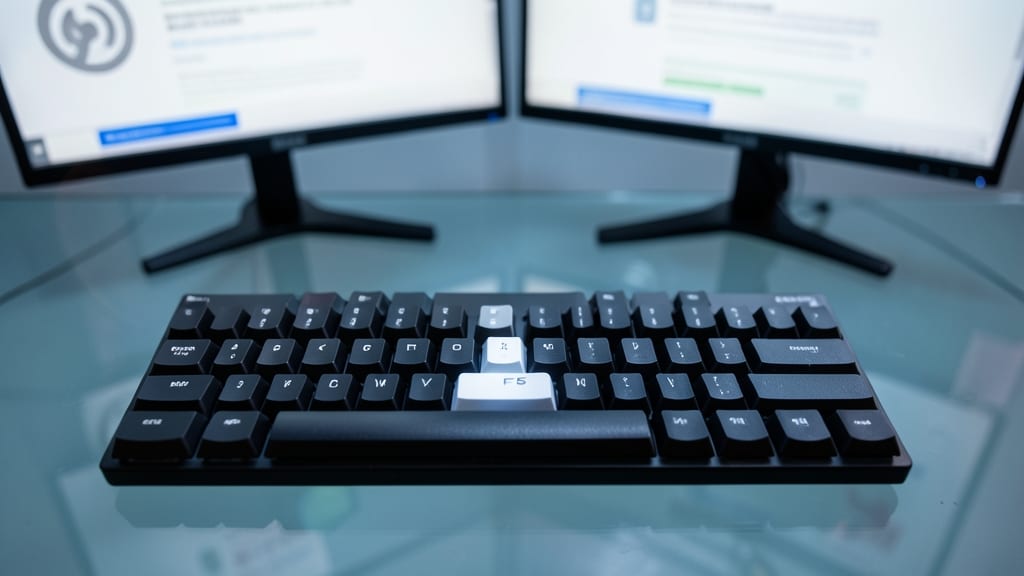
Stuck on a webpage that refuses to update? The F5 key is your universal refresh button—working across Chrome, Firefox, Edge, and Safari to instantly reload content. Unlike the back button or manual reload, it bypasses cached versions, ensuring you see the latest version of any page.
Pressing F5 triggers a hard refresh, clearing temporary files and forcing servers to resend data. For developers, this is invaluable when testing live changes, while casual users can escape outdated content without digging through browser menus. Pro tip: Hold Ctrl (Windows/Linux) or Cmd (Mac) while pressing F5 for an even deeper cache-clearing refresh.
This shortcut shines for anyone managing dynamic content—whether you're debugging a website, tracking real-time updates, or just frustrated by stale data. ⚡
F6 Key: Cycle Through Browser Address Bar
Tired of clicking through browser menus to switch between tabs, the address bar, and search? The F6 key is your secret weapon for lightning-fast navigation in Chrome and Firefox. With a single press, you cycle seamlessly between these three critical browser elements, cutting down on mouse movements and boosting your workflow efficiency.
This shortcut works universally across both browsers—no extensions or tweaks required. Just press F6 repeatedly to jump from the address bar to the search box, then to tabs, and back again. It’s especially useful when you’re juggling multiple tabs and need to switch contexts quickly, like checking a URL while keeping an eye on open tabs. The best part? It’s zero-config, meaning it’s ready to use as soon as you open your browser.
Power users, researchers, and anyone drowning in open tabs will love this time-saver. Give it a try next time you’re multitasking across browser windows—your fingers (and sanity) will thank you. ⚡
F7 Key: Spell Check in Microsoft Office
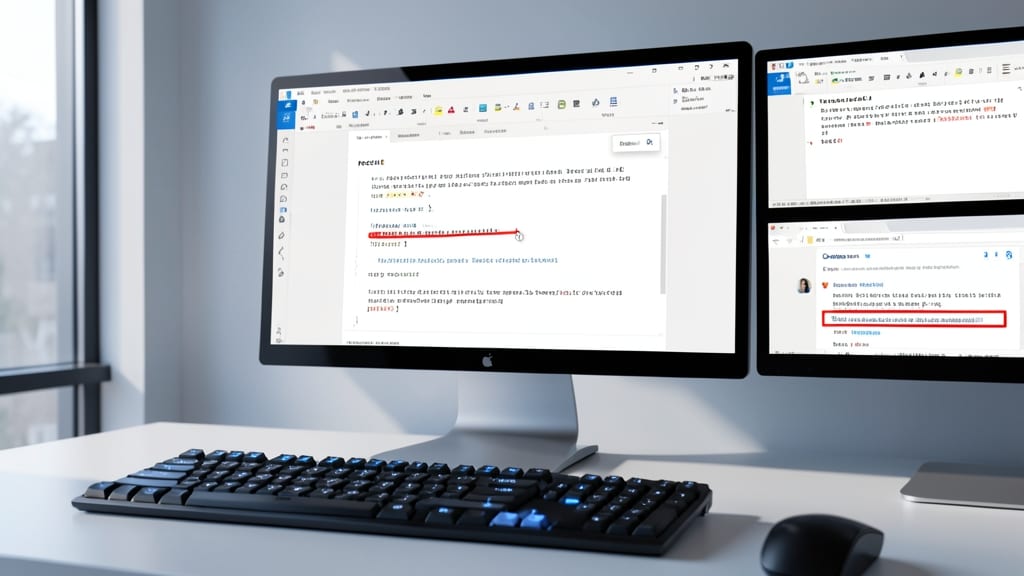
Tired of manually opening the Review tab in Microsoft Office to catch typos? The F7 key is your secret weapon for instant spell-checking across Word, Outlook, and PowerPoint—no extra clicks required.
Pressing F7 triggers the built-in spell checker, highlighting errors in real-time while you type. It works seamlessly in Word documents, emails, and presentations, saving time for professionals who juggle multiple projects. The shortcut even catches grammar suggestions in newer versions of Office, making it a powerhouse for quick edits.
Perfect for writers, marketers, and executives who need polished documents fast, this shortcut turns proofreading into a one-key process. No more tab-switching or menu diving—just press F7 and let Office handle the rest. ✨
F8 Key: Boot into Safe Mode
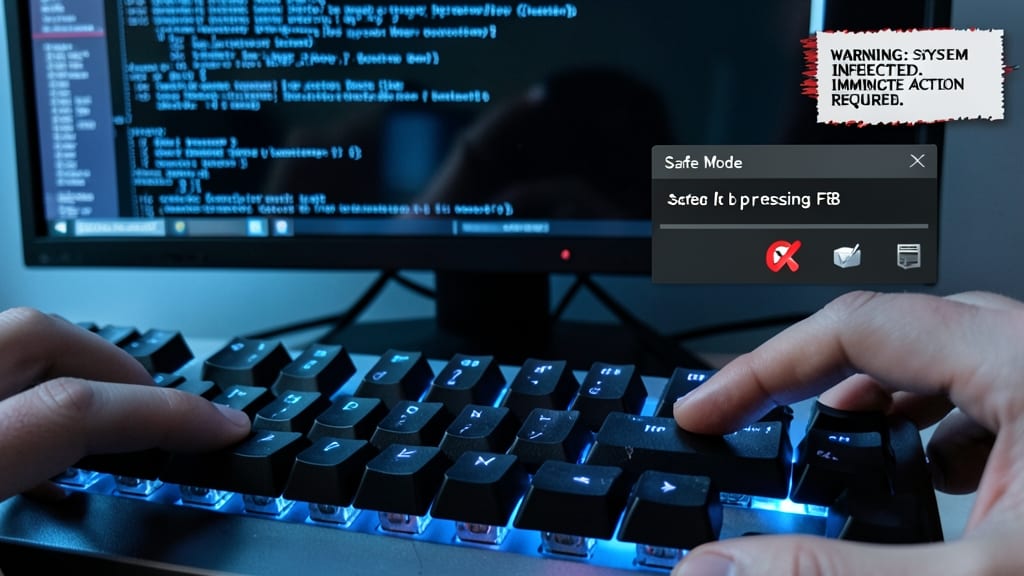
When your PC acts up but you can’t restart—whether it’s a stubborn driver conflict or a malware infection—F8 is your silent troubleshooter. Unlike other keys that require a full reboot, pressing F8 during startup (before Windows loads) lets you access Safe Mode without losing unsaved work or waiting for a slow shutdown.
This legacy shortcut (originally for Windows XP) still works on modern systems, though timing is key: tap F8 repeatedly as soon as you power on, before the Windows logo appears. Safe Mode loads only essential drivers, isolating the issue—perfect for diagnosing malware, corrupt updates, or misconfigured services. For IT pros, this means faster diagnostics without booting into a problematic state.
Ideal for sysadmins, IT support teams, or users recovering from crashes, F8’s power lies in its simplicity. Just remember: Windows 10/11 may require holding Shift + Restart for newer PCs where F8 is disabled by default. 💻
F11 Key: Toggle Full-Screen Mode
Need to focus on research or edit videos without distractions? The F11 key is your gateway to instant full-screen immersion across browsers and media players.
Pressing F11 toggles full-screen mode in Chrome, Firefox, Edge, and even video players like VLC or YouTube. It works universally—no need to hunt for the maximize button. For video editors, this shortcut eliminates UI clutter when reviewing footage, while researchers can dive into dense articles without toolbar distractions.
Perfect for anyone who spends hours staring at screens—from video editors to data analysts. ⚡
F12 Key: Developer Tools in Browsers
Tired of hunting through menus to debug websites? The F12 key is your secret weapon—press it once to instantly open Chrome DevTools or Firefox Developer Tools, skipping the right-click hassle entirely.
This shortcut unlocks the Elements tab for live HTML/CSS inspection, the Console for JavaScript debugging, and Network tools to track API calls—all in seconds. Works across Windows, macOS, and Linux, and even supports keyboard shortcuts like Ctrl+Shift+I (Chrome) or Ctrl+Shift+K (Firefox) for direct access.
Perfect for web developers, designers, or QA testers who debug daily—no more digging through settings menus. ⚡